
Have you ever noticed how some computers seem super speedy? RAM is like a handy notepad that only holds onto information while your computer is on, helping it remember what you need right now. It acts as a short-term helper that makes your apps launch quickly and files open in a flash. With its rapid data reading and writing, RAM lets your computer juggle multiple tasks effortlessly. Keep reading to discover how a clever RAM setup can make your everyday computing feel almost magical.
RAM Computer Fundamentals and Functions
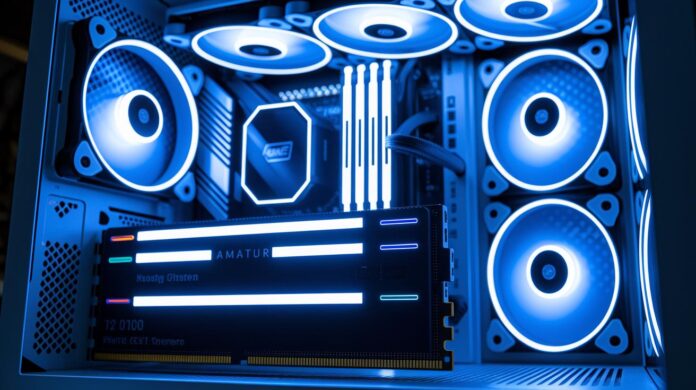
Imagine RAM as your computer’s short-term notepad, it temporarily holds the data and instructions apps need to run smoothly. Much like your brain's short-term memory, RAM keeps only what’s immediately required for processing tasks. It sits on your motherboard, reading and writing data at lightning speed so you can launch a browser or switch between programs in a snap. But once the power goes off, all that information disappears, which is why saving your work on a permanent storage device is so important.
At its hardware core, RAM is laid out in a tidy grid of memory cells, each accessed by a unique row and column address. There are different types, too. Dynamic RAM, known as DRAM, uses a single transistor and a capacitor per bit and needs regular refreshing to keep its data intact. On the other hand, Static RAM (SRAM), often found in cache memory, uses four to six transistors per bit. This design allows faster access, though it comes at the cost of using more power and space. This organized structure is what lets your system manage multiple tasks without a hitch.
RAM’s speed and temporary nature play a huge role in your computer’s overall performance. More memory means handling complex operations, like editing high-resolution videos or running several applications at once, is a breeze. For everyday tasks, 8 GB might do the trick, but power users often benefit from 16 GB or more to keep everything running responsively. In essence, understanding how RAM works underscores why smart memory management is key to a fast, efficient computing experience.
RAM Module Types and Generational Advances
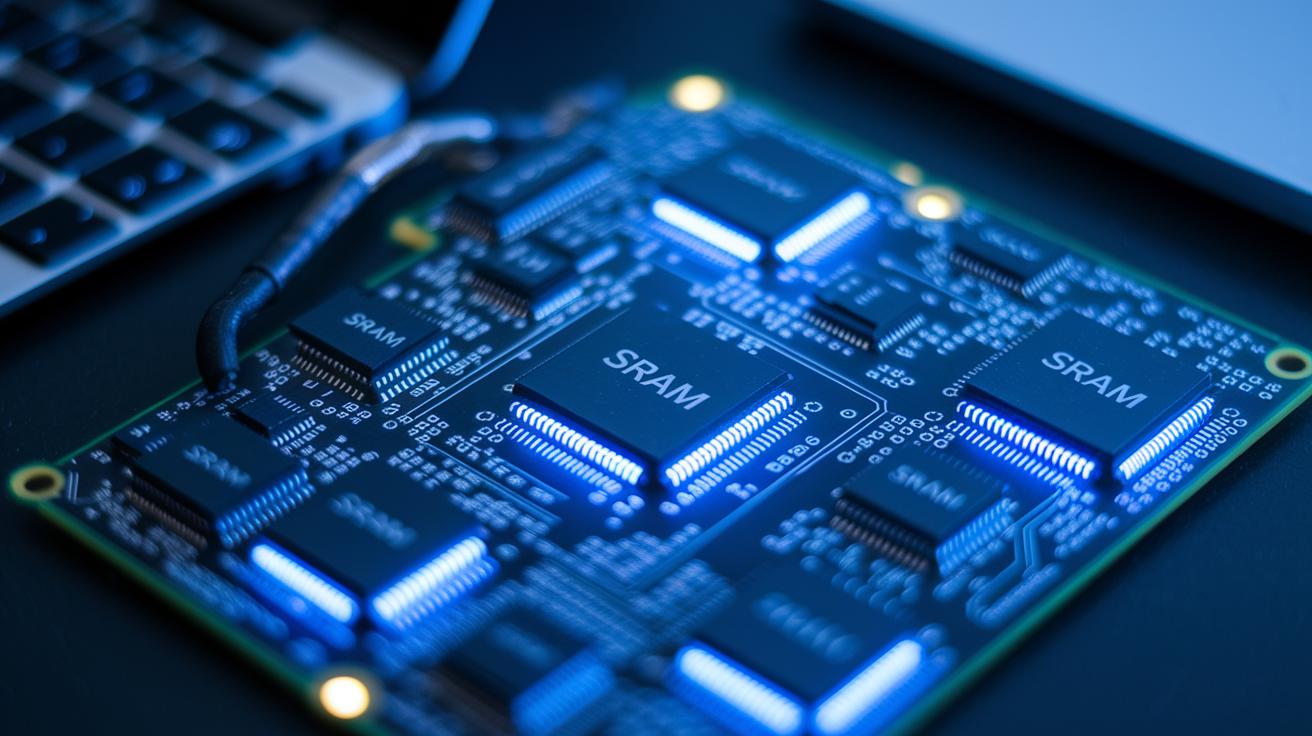
DRAM and SRAM are two core memory types that temporarily hold your system's data. DRAM, or dynamic memory, needs regular refresh cycles to keep its bits intact. This approach is resource-friendly although it relies on periodic pulses to maintain information. In contrast, SRAM uses flip-flops for storage, giving it super-fast access times. The flip-flop configuration in SRAM enables blazing fast access times, much like snapping your fingers to switch between tasks. While it powers up cache memory with near-instant responsiveness, it does so at a cost, increased power consumption and more space.
SDRAM takes these ideas further by syncing its functions with the system clock, which boosts overall performance. Over time, advances from DDR3 to DDR4 have led to noticeable improvements in speed and energy efficiency. Introduced in 2014, DDR4 offered a balance between performance and power usage, while DDR5 now pushes the limits with higher bandwidth and reduced power per bit. Then there’s NVDIMM, a clever module that marries high-speed RAM with data retention even when the system is off.
| Module Type | Data Rate Range | Voltage | Refresh Requirement |
|---|---|---|---|
| DRAM | 800-3200 MT/s | 1.2-1.5V | Periodic Refresh |
| SRAM | High Speed | ~1.8V | None |
| DDR4 | 2133-3200 MT/s | 1.2V | Periodic Refresh |
| NVDIMM | Comparable to DDR4/DDR5 | Variable | Periodic Refresh with Backup |
RAM Computer Performance and Upgrades
When you upgrade your RAM, your computer practically springs to life. Insufficient memory can make multitasking feel like you're stuck in slow motion, whether you're opening apps or switching between documents. Picture it as replacing a tiny notebook with one that has plenty of pages to keep up with your busy day.
For everyday tasks, 8 GB of RAM usually does the trick. But if you’re editing photos or creating content, 16 GB often makes a big difference. More intensive work, such as video editing or running virtual machines, might even call for 32 GB or more. Many users find that boosting memory is a budget-friendly alternative to buying a whole new CPU. Tools like system-selector can even help pick the right modules that match your system’s capacity and speed requirements.
Installing RAM is pretty straightforward if you handle it with care. Just gently insert the modules in a static-safe space and check your BIOS settings to be sure everything is recognized. Once it’s all set up, you’ll notice your computer breezing through tasks, offering a smoother, faster experience overall. Upgrading your memory not only makes your system more responsive but also prepares it for modern applications that demand high-speed data access.
ram computer: Experience Lightning Fast Speed
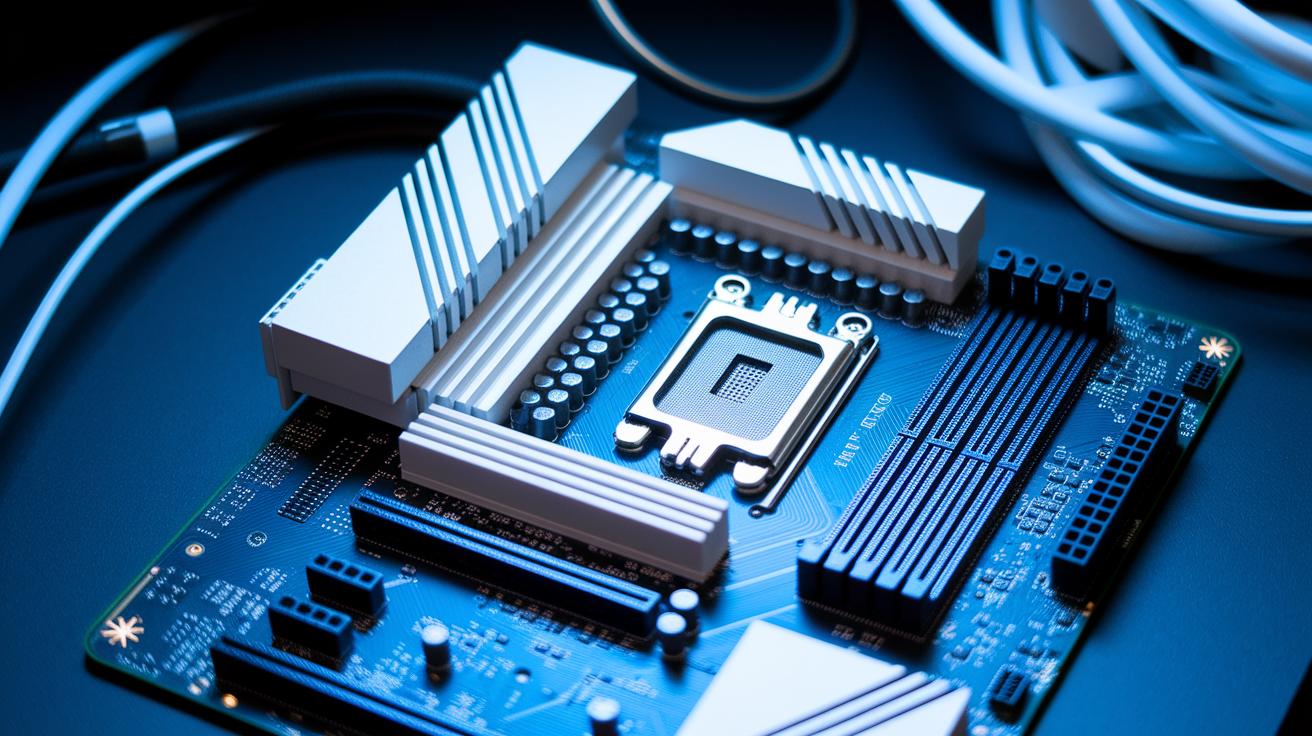
When you’re picking out RAM modules, you want to make sure they match with your computer’s physical setup and power needs. Different motherboards need specific sizes, like DIMM for desktops or SO-DIMM for laptops, along with the right DDR version. High-frequency kits like DDR5-6400 can deliver excellent speed without breaking the bank. Tools available for computer parts can quickly confirm if everything fits together perfectly. A well-chosen module not only boosts your computer’s pace but also helps it run smoothly, even when juggling several tasks at once.
It’s also a smart move to trust well-known brands. Companies such as Crucial, Corsair, and G.Skill have built their reputations on reliability and even offer lifetime warranties on their kits. By comparing module speed, capacity, and your budget, you can simplify the decision process. Whether you use your computer casually or you’re a tech buff, picking high-capacity yet wallet-friendly options makes your upgrade both clever and satisfying. Always check your system guide for the necessary technical details so you can avoid any hiccups during installation.
RAM Computer Troubleshooting and Maintenance
When your system starts acting up because of its RAM, a step-by-step approach can work wonders. Issues like modules not being recognized, boot failures, or system crashes during startup often come down to loose seating or memory settings that just don’t match up. Instead of jumping straight to a hardware swap, give diagnostic tools a spin, a quick check of module health, voltage, and temperature might point you in the right direction. Sometimes, a simple fix like popping the RAM back in or tweaking your BIOS settings can bring your computer back to life. A careful, methodical evaluation can spot the root of the problem and help avoid future headaches.
Keeping your memory stable is key to a smooth-running computer. Adjusting settings in your BIOS, like voltage or timings, and enabling profiles such as XMP or DOCP can prevent minor errors from snowballing into major crashes. Plus, simple routine maintenance like dusting off your modules and updating firmware can go a long way in boosting performance. Regular diagnostic tests not only confirm that your tweaks are working but also help build a solid foundation for long-term system reliability.
Final Words
In the action, this article covered everything from the basics of how a ram computer works to comparing module types, boosting system performance, selecting compatible modules, and addressing common troubleshooting tips. We broke down concrete examples of memory functioning and upgrade paths that make the sometimes complex world of computer memory easier to grasp. The insights provided help you make informed decisions and spark confidence when discussing the latest tech trends. Embrace these actionable insights and move forward with a clearer view of your system's potential.
FAQ
What is RAM on a computer?
The term RAM on a computer refers to short-term memory that temporarily stores data and instructions for quick processing, making multitasking and overall system responsiveness smooth and efficient.
What distinguishes a ROM computer?
A ROM computer centers on read-only memory that stores permanent data, contrasting with RAM that temporarily holds information and loses it when power is turned off.
How is the RAM computer price determined?
The RAM computer price reflects different system models based on memory capacity, brand, and performance levels, influencing overall speed and multitasking efficiency.
What defines a RAM computer laptop?
A RAM computer laptop indicates a portable system enhanced by varied memory capacities designed to boost performance for everyday tasks and creative applications.
What does the term RAM memory imply?
The term RAM memory implies short-term, volatile storage that plays a vital role in processing current tasks by quickly accessing and handling data for smooth system operation.
What should I know about a RAM computer for sale?
A RAM computer for sale refers to systems available with varying memory configurations, where the included RAM capacity directly affects multitasking performance and overall computing speed.
What does a 32 GB RAM computer offer?
A 32 GB RAM computer provides ample memory ideal for heavy multitasking, content creation, or virtualization, ensuring robust performance for demanding applications.
What are the types of RAM?
Types of RAM include DRAM, SRAM, and SDRAM. Modern systems typically use DDR variations, which boost efficiency and performance with different designs suited for specific processing needs.
How much RAM does my computer need?
The amount of RAM needed depends on usage; general tasks may require 8 GB, while intensive activities like content creation benefit from 16 GB or more to maintain smooth operation.
What is used RAM for?
Used RAM refers to the portion of memory actively engaged in handling currently running applications and processes, ensuring quick access to necessary data during tasks.
What happens when RAM becomes full?
When RAM fills up, the computer may slow down or switch to using storage as virtual memory, leading to longer processing times and reduced efficiency in multitasking.