
Ever wonder if pushing your computer too far is too risky? Overclocking software might change your mind by giving you a safe way to boost performance. It tweaks your CPU and GPU settings so your games feel smoother and rendering is faster.
Think of it as a quick upgrade that makes even an older PC feel refreshed. In this article, we break down how to use these tools effectively so you can enjoy real performance gains without any extra worry.
Overclocking Software Overview: Tools, Performance Gains, and Risks
Overclocking software gives you the freedom to push your hardware beyond its default settings, which means smoother gameplay, improved rendering, and enhanced overall performance. It fine-tunes your CPU and GPU frequencies so that even demanding apps and modern games (think 4K titles) run more fluidly. This approach not only revitalizes older systems but also delivers clear performance boosts when you back it up with an effective cooling setup.
These tools let you adjust voltage and frequency settings with precision, ensuring that every extra ounce of power translates into visible gains. Whether you're tapping into a CPU utility for quicker memory benchmarks or using a GPU tool to get more frames per second, overclocking software offers a cost-effective way to level up your system. It’s a win-win whether you’re a casual gamer or a professional in need of peak performance.
| Tool | Description & Gain |
|---|---|
| MSI Afterburner | A solid GPU clock speed adjuster with precise clock and voltage controls, typically delivering about a 15% gain. |
| EVGA Precision X1 | Designed for specific NVIDIA models, this tool offers manual adjustments and custom profiles, yielding roughly a 12% boost. |
| RivaTuner | A versatile option for NVIDIA GPUs up to RTX 4090, with manual tuning that can improve performance by around 15%. |
| Sapphire TriXX | An AMD-only solution featuring one-click presets, which typically gives about a 10% gain. |
| Asus GPU Tweak II | Offers one-click overclocking along with fan-curve adjustments, often resulting in nearly a 12% performance improvement. |
| AMD Ryzen Master | A CPU performance tuner that lets you create custom overclock profiles, potentially boosting speeds by up to 15%. |
But pushing your gear beyond its comfort zone can come with risks. Overclocking might lead to sudden temperature spikes during heavy use, which can cause crashes or even long-term instability. And if you push things too far, you might void your warranty. The trick is to make small, careful adjustments, run steady stress tests, and keep an eye on temperatures with a reliable hardware monitor. That way, you get performance gains without compromising your system’s health.
CPU Overclocking Software: Leading Utilities and Setup Instructions
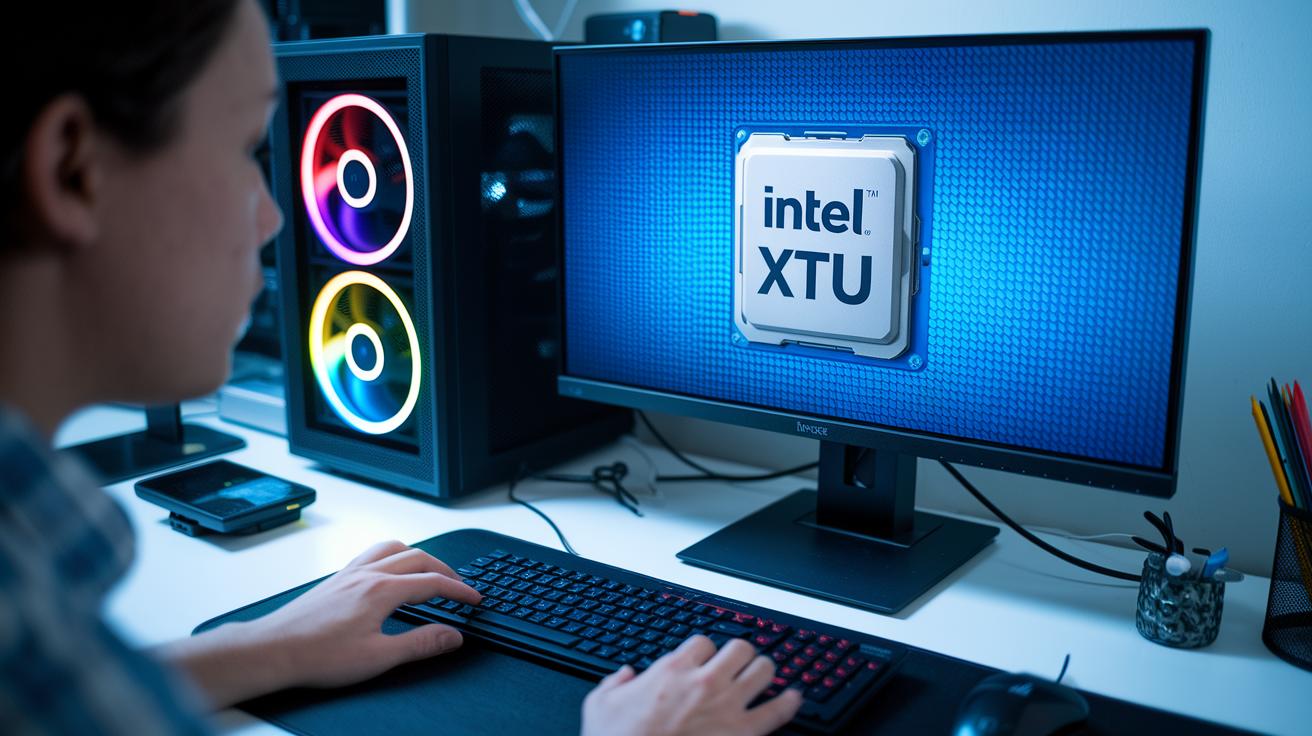
Before you start pushing your CPU beyond its limits, double-check that your system is ready for the challenge. Make sure your motherboard is compatible, your BIOS is up to date, your cooling system is efficient, and your power supply is rock solid. Adjust your BIOS settings to allow voltage changes and enable performance tuning options. Getting this foundation right is key, because even a small oversight can lead to instability or overheating.
Intel Extreme Tuning Utility
The Intel Extreme Tuning Utility sports a clean and intuitive interface that makes tweaking multipliers and power limits a breeze. Designed for Windows 10 and 11, it lets you gradually ramp up your clock speeds while keeping you in the loop with your current settings and potential gains. Running the tool with small voltage steps, say, +0.05 to 0.1 volts, can boost your CPU frequencies by roughly 10 to 15 percent over the default. Just remember to test your system for at least 60 minutes after each change to make sure it stays reliable.
AMD Ryzen Master
AMD Ryzen Master is a favorite for many because it offers solid profile management. You can easily save and switch between different overclocking setups, which is super handy if you like experimenting. Its straightforward layout lets beginners adjust voltages, clock multipliers, and power limits while keeping an eye on real-time error reports. With built-in safeguards, the software will gently warn you if you’re pushing your hardware too far. By making small, thoughtful tweaks, you can fine-tune your settings until you achieve a stable balance, a trusted companion for a range of Ryzen CPUs.
OCCT CPU Benchmark
OCCT CPU Benchmark is your go-to tool for stress testing your new overclock settings. It delivers clear CPU and memory benchmark scores that show how your system performs under load. Running these tests for 60 minutes or more gives you a clear picture of your configuration’s stability. Keep an eye on the logged results and cross-check with a hardware monitor to ensure temperatures remain below 80 °C even during heavy use. This methodical, data-driven approach lets you make step-by-step improvements while keeping your system both safe and efficient.
For the best results in overclocking, remember to make small adjustments, continuously monitor your temperatures, and be ready to revert to your original settings if anything goes awry.
GPU Overclocking Software: Enhancing Graphics Performance
GPU overclocking software can give your graphics card a real boost by increasing frame rates and cutting down on rendering times without breaking the bank. By fine-tuning voltage and clock speeds, you’re able to squeeze out extra performance while keeping your system running safely. For instance, try nudging the core clock in 5% increments and keep an eye on your GPU temperature to ensure smooth sailing.
| Software | GPU Brand | Key Feature | Estimated FPS Gain |
|---|---|---|---|
| RivaTuner | NVIDIA (up to RTX 4090) | Manual core & memory clock control | 15% |
| Sapphire TriXX | AMD Radeon (RX 6000 series) | One-click overclock presets | 10% |
| Asus GPU Tweak II | Asus Cards | One-click overclocking & fan-curve adjustments | 12% |
| Zotac Firestorm | Zotac | Brand-specific tuning with voltage control | 12% |
| EVGA Precision X1 | EVGA | Custom profiles with detailed voltage tuning | 12% |
| MSI Afterburner | Universal | Precise clock & voltage sliders with FPS overlay | 15% |
Keeping your GPU cool is key when you’re pushing performance limits. Tools like Open Hardware Monitor help track temperature and voltage swings, giving you solid feedback as you tweak your settings. If you’re really testing your hardware, maybe adjust your fan speeds or even consider a liquid-cooling setup. For example, setting the fan to kick in at 40% speed at 60°C and then ramping up to 70% by 70°C can help keep everything in check during those high-demand sessions.
Overclocking Software: Elevate Performance With Confidence
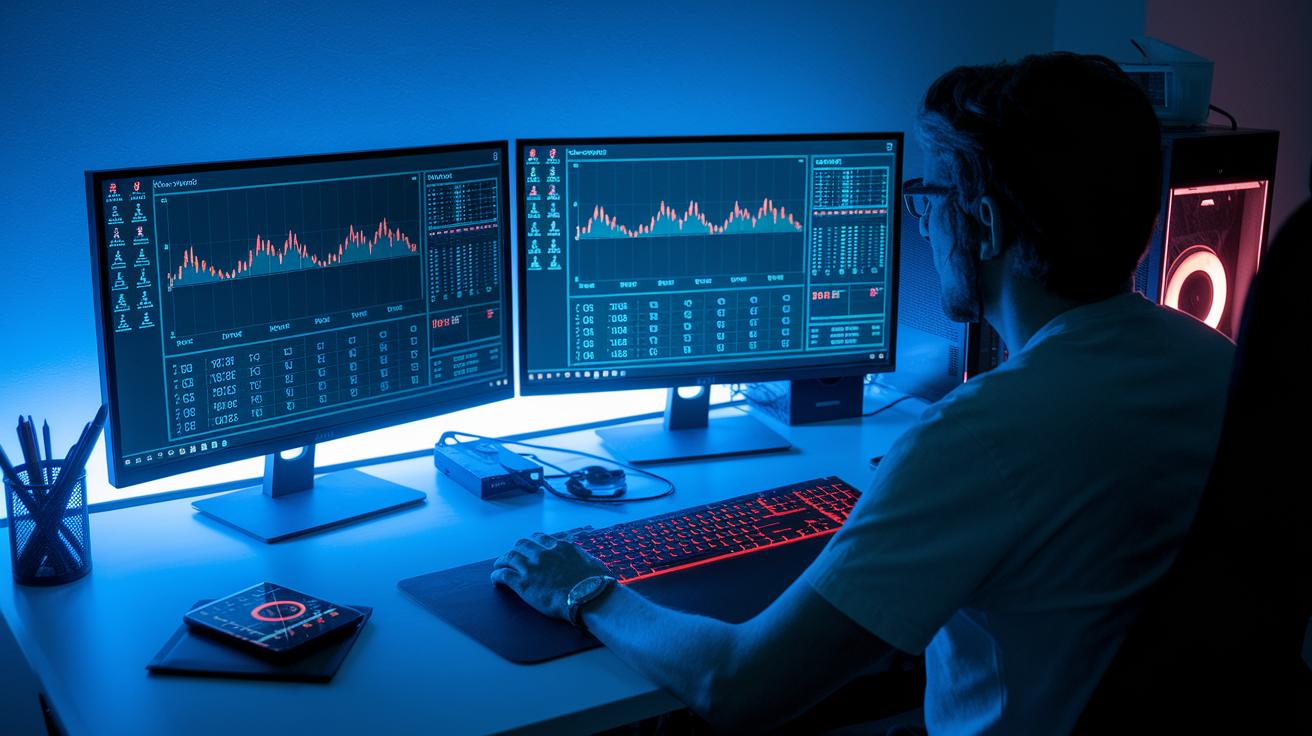
Overclocking software now comes loaded with strong built-in benchmarking tools and adaptive stress tests that take the guesswork out of optimizing your system. For example, OCCT v15 runs storage checks, 3D adaptive tests, and combined CPU/memory benchmarks so you can see how your system performs under different loads. Imagine a test that naturally ramps up stress while keeping an eye on every voltage change and heat spike, it gives you a clear snapshot of the performance improvements each tweak brings.
Real-time monitoring dashboards, powered by the HWiNFO engine, let you peek inside your system at any moment. They showcase everything from CPU speeds and GPU performance to voltage levels and fan rates, offering instant feedback on every change you make. It’s like having a performance coach right in your hands, guiding you with up-to-the-second data so you know your tweaks are delivering the expected boost without overburdening your hardware.
Certificates and detailed reports from these tests make it easy to verify that your system stays stable. By comparing before-and-after performance metrics, you can confidently see how your adjustments lead to continuous improvements. These certificates not only highlight your progress but also ensure that your upgrades remain safe and reliable, letting you push your system to its full potential without compromise.
Overclocking Software Compatibility: OS, Hardware, and Cooling Requirements
First, make sure your operating system is ready for the overclocking software you want to use. For example, OCCT works with Windows 7, 8, 10, and 11, and its v15 Beta even supports Linux. Meanwhile, tools like MSI Afterburner, EVGA Precision X1, and Asus GPU Tweak II are built exclusively for Windows. So, double-check your OS version before you start fine-tuning your hardware.
Next, take a close look at your system components such as the motherboard, CPU, and GPU. Manufacturers typically advise keeping CPU and GPU temperatures below 80 °C and 85 °C, respectively, especially during prolonged stress tests. A sturdy system relies on meeting these hardware requirements, so it’s important to ensure your setup is up to the task.
Cooling plays a crucial role too. Whether you’re using fan speed controllers or opting for a liquid-cooling setup, maintaining optimal temperatures is key during heavy overclock sessions. For instance, you might set your fan to speed up as temperatures near your safety threshold.
Finally, consider the differences between BIOS tuning and software-based adjustments. BIOS tuning lets you adjust voltage more deeply, but it doesn’t offer the real-time profiles or quick flexibility that software tuning does. This insight can help you decide whether you need enhanced control or the convenience of on-the-fly tweaks.
Overclocking Software Best Practices and Troubleshooting Tips
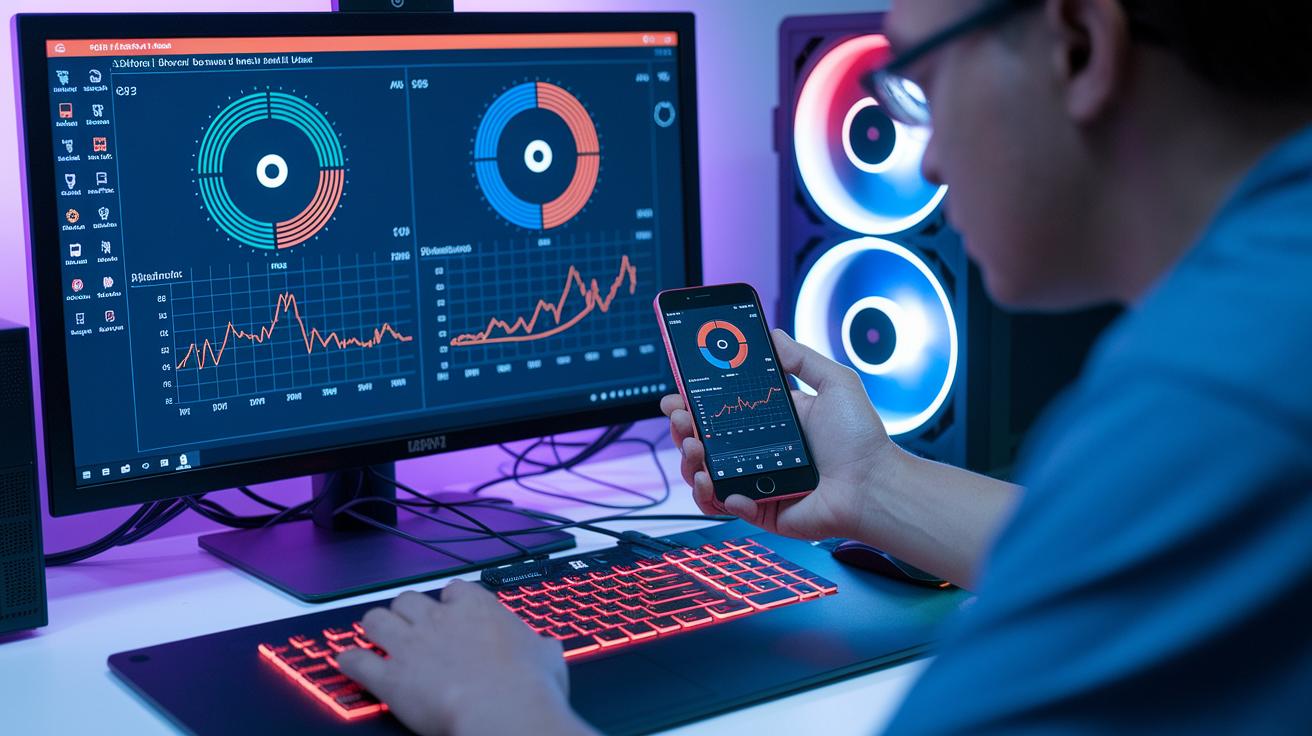
Getting started with overclocking means making only tiny adjustments at first. Experts suggest boosting voltage in small steps, no more than 0.05 volts at a time, and then running mixed stress tests for about two hours to see how your system holds up. This step-by-step method lowers risk and helps you really notice what each change is doing to your performance. Try adjusting one setting, then watch for any shifts in behavior during your load tests.
Monitoring your system is key to spotting potential trouble early. Tools like OCCT offer detailed logs that can point out when voltage or frequency starts to get unstable. Meanwhile, if you see temperature spikes in your HWiNFO logs, consider them early warning signs of a possible crash under heavy load. Paying close attention to these details can show you exactly when your hardware is being pushed too far. And if a 3D adaptive test starts flickering with failures, it might be time to fine-tune your adjustments further.
When things don't go as planned, a quick reset to default settings can be a lifesaver. Most GPU tools come with a built-in reset function to help you swiftly undo any risky changes. If you're still seeing instability, it might be worth ramping up your cooling efforts or rethinking your overclocking plan. Boosting cooling, whether by increasing fan speeds or optimizing your liquid-cooling setup, can ease heat buildup and ensure that your performance gains don't come at the cost of safety.
Advanced Overclocking Software Techniques and Trends for 2024
Overclocking software is evolving quickly, making it less about endless tweaking and more about smart, automated performance boosting. With OCCT v14.2, users first saw the power of Vulkan-based stress tests, and now the v15 Beta takes it further by adding a storage benchmark and support for Linux. One-click AI tuning profiles are also on the rise. Imagine your system picking the perfect settings with just a tap, like when a leading gamer scored a 12% FPS boost without any of the usual back-and-forth testing. This change is a game-changer, making overclocking approachable for newbies and giving experts a way to fine-tune without wasting time on trial and error.
Real-time dashboards are now standard, featuring customizable overlays that let you keep an eye on detailed performance data and compare benchmarks side by side. Users are increasingly calling for cross-platform support, with many looking for compatibility with both macOS and Linux environments. This trend is guiding the industry toward more inclusive software that meets a range of needs while ensuring that performance improvements are clear and dependable.
Final Words
in the action, this post explored overclocking software and its role in boosting processor and graphics performance. It broke down vital components, from tool overviews and safety tips to benchmarking checks and hardware compatibility. Each section aimed to simplify the tuning process and provide straightforward advice on achieving better system performance. The discussion encourages a practical, confident approach to tech decisions. Embrace the insights, experiment responsibly, and enjoy watching your system perform at its best.
FAQ
What is MSI Afterburner?
MSI Afterburner is a tool for overclocking graphics cards that adjusts clock speeds and voltages to boost gaming performance while providing system monitoring features.
What Intel overclocking software is available?
Intel overclocking software like Intel Extreme Tuning Utility allows CPU tuning on Windows, offering adjustments to multipliers and voltage settings for improved system performance.
Is there free overclocking software available?
Free overclocking utilities such as MSI Afterburner and Intel Extreme Tuning Utility let users adjust system settings without cost, making performance boosting accessible for various hardware setups.
What overclocking software works on Windows 10?
Windows 10 supports many overclocking tools including MSI Afterburner, Intel Extreme Tuning Utility, and others that offer compatibility with both GPU and CPU tuning applications.
What is considered the best overclocking software?
The best overclocking software depends on your hardware and goals, with popular options like MSI Afterburner, Intel Extreme Tuning Utility, and AMD Ryzen Master offering robust performance tuning features.
How do I download CPU overclocking software?
Downloading CPU overclocking software is straightforward; visit the official websites for Intel Extreme Tuning Utility, AMD Ryzen Master, or other trusted platforms to obtain secure installation files.
Does Nvidia offer overclocking software?
Nvidia-related options such as MSI Afterburner and RivaTuner provide overclocking capabilities, letting users manage GPU clock speeds and voltage settings for performance enhancements on Nvidia cards.
Is it safe to overclock a GPU?
Overclocking a GPU is safe when done carefully with proper cooling and gradual adjustments; monitoring applications help keep temperatures and voltages within secure ranges for stability.
Can I use AI to overclock my PC?
Some modern overclocking tools now incorporate AI features that automatically fine-tune settings based on system performance data and temperature measurements for easier adjustments.
What roles do RivaTuner, Steam, AMD Radeon Software, 3DMark, and Hwinfo play in overclocking?
Tools like RivaTuner and Hwinfo monitor system metrics, while AMD Radeon Software provides preset tuning options, and 3DMark along with Steam can help benchmark and compare performance improvements.