
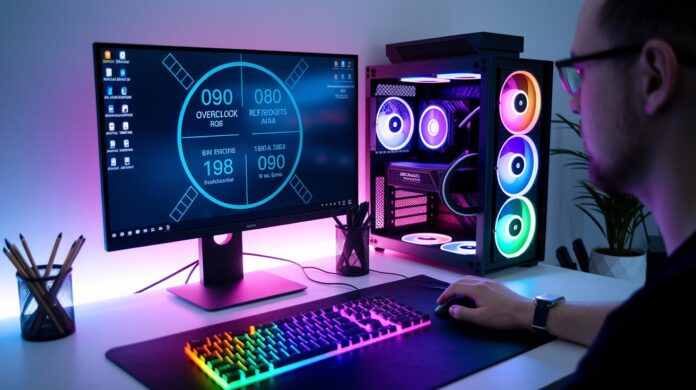
Ever thought about unlocking hidden power in your computer, like turning it into a finely tuned race car? Intel's CPU overclocking software makes this possible by carefully adjusting voltage and frequency settings, basically, it tunes your processor for extra performance.
These handy tools let your computer work at its absolute best. One option automatically checks and tweaks each core, while another gives you the chance to control the settings yourself. So whether you’re a dedicated gamer or simply looking for a boost during busy workdays, there's a solution that fits your needs.
This article walks you through how both approaches help drive your system to peak performance. Ready to explore just how far you can push your Intel CPU?
Intel CPU Overclocking Software Tools Overview
Overclocking an Intel CPU is all about tweaking the voltage to process more instructions every second, giving you that extra performance boost. It's a real win for gamers, benchmark enthusiasts, and anyone looking to get more productivity out of their rig.
Intel has two smart solutions to deliver this boost. One option is the Intel Performance Maximizer, which takes care of everything by running smart tests on each CPU core. It finds the best voltage and frequency settings, though on multi-core processors, this process might take a few hours. Ever think of it like tuning a race car engine? Each core is carefully tested to reach its full potential.
If you prefer to fine-tune things yourself, the Intel Extreme Tuning Utility puts you in the driver's seat. It lets you manually adjust voltage, clock ratios, and other key settings. So, whether you're into automated tweaks or hands-on control, these tools are built to give you a faster, more responsive computing experience.
One quick tip: before setting up the Intel Performance Maximizer, disable any overclocking software you already have and reset your BIOS to its default settings. This simple step helps avoid conflicts and ensures you get a stable, optimized configuration.
Intel CPU Overclocking Software Boosts Peak Performance

Before diving into any overclocking software, make sure you clear out any other tools and reset your BIOS settings to default. This simple step helps avoid conflicts and ensures your system is starting from a clean slate. Think of it like tidying your desk before beginning a new project.
Your gaming rig needs to meet specific system requirements for these utilities to run without a hitch. You should have a supported Intel Core processor generation, updated firmware and drivers, plus one of the recommended Windows versions, either Windows 10 with the Intel overclock program or Windows 11 with the Intel tuning solution. This combination helps prevent installation headaches and unexpected errors.
Here’s how to set up your overclocking software in a few clear steps:
- Download the correct Intel overclocking software file from the official source.
- Turn off any other overclocking programs and restore your BIOS settings to their defaults.
- Double-check that your processor, firmware, and Windows version are compatible with the software you’re installing.
Now, simply double-click the downloaded file and follow the on-screen prompts to get the Intel Performance Maximizer or Intel Extreme Tuning Utility installed. During the process, you may get notifications asking for permission to change system settings or even a prompt to restart your computer. Keep an eye on these cues to ensure a smooth and successful installation, helping you boost your system’s peak performance.
How Intel Performance Maximizer Works
Intel Performance Maximizer uses smart, algorithm-driven tests on every CPU core to find the perfect balance of voltage and frequency. It replaces the old days of painstaking manual tuning with an automated process that cuts out the endless guesswork. Think of it like tuning each key on a grand piano until every note sounds just right, each core receives its own custom tweak for peak performance.
The tool runs advanced tests on every core individually. Because it gives each core careful attention, the tuning process might take a few hours on processors with many cores. In other words, it’s like having a mini-engineer inside your PC, making sure everything is dialed in perfectly to give you that extra boost.
By automating these complex adjustments, the overclocking utility delivers a steady frequency upgrade with hardly any effort on your part. It continuously refines voltage levels while keeping your system rock-solid, making it a top pick for gamers and tech enthusiasts who want smoother, more efficient performance.
Manual Overclocking with Intel Extreme Tuning Utility
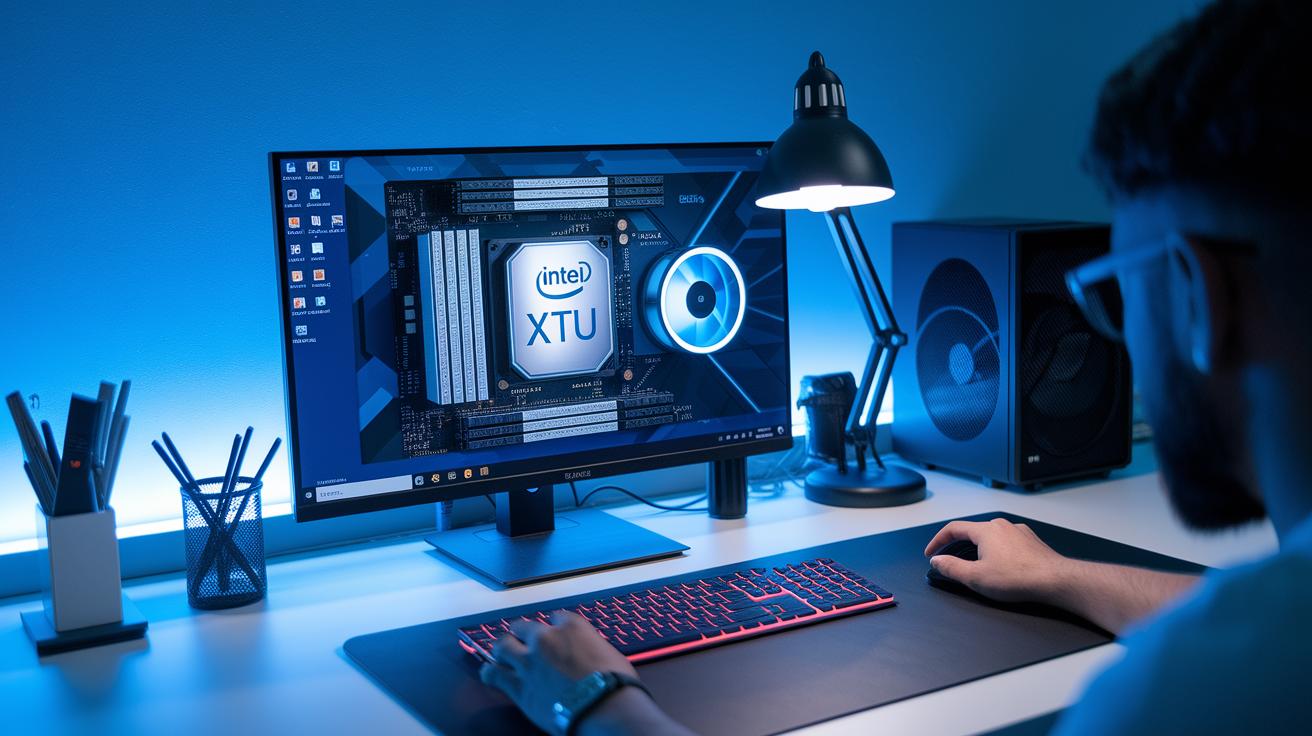
Tuning your Intel CPU manually can be a fun way to boost its performance by carefully adjusting voltage and clock multipliers. With the Intel Extreme Tuning Utility, you’re in the driver’s seat, altering voltage offsets, clock ratios, power limits, and even fan curves. Think of it like fine-tuning a high-performance sports car; every little adjustment helps bring out the best in your processor.
When you dive into the utility, you'll find you can tweak each core setting individually. For instance, you might increase the CPU voltage to support a higher clock multiplier, much like giving a little extra fuel to a powerful engine. As you adjust the clock ratio step by step, you can watch real-time displays of power current and temperature, keeping an eye out for any thermal spikes. It’s an intuitive way to see every change, ensuring you stay within safe limits.
Key steps include:
- Adjusting voltage offsets to provide your processor that extra boost.
- Modifying clock multipliers so each core processes instructions faster.
- Setting power and current limits to maintain system safety.
- Tuning fan curves to efficiently manage heat during intense usage.
In short, these manual tuning steps give you precise control over your CPU’s performance while keeping power and temperatures in check. It’s like being your own mechanic for a custom-built machine, with every tweak backed by immediate feedback and noticeable performance improvements.
Performance Benefits and Benchmarking with Intel Overclocking Software
When you overclock your Intel CPU, you’re essentially shifting it into a higher gear. This means it processes more instructions every second, boosting the scores on benchmarking tests and making everyday tasks run smoother. Some users even see synthetic benchmark improvements between 10% and 18% after dialing in their settings.
Think of your processor like a race car. The faster its engine revs up, the quicker it completes each lap, whether you’re gaming, editing videos, or simply browsing online.
Controlled tests show clear gains in efficiency. Check out the example table below for typical performance improvements:
| Test Tool | Performance Gain |
|---|---|
| Intel Performance Maximizer | 12-18% |
| Intel Extreme Tuning Utility | 10-15% |
These gains translate into better gaming responsiveness, faster content rendering, and smoother multitasking. In short, Intel’s overclocking software is a smart choice if you’re looking to get the most out of your system.
Ensuring Stability: Stress Testing and Thermal Management for Intel Overclocking Software
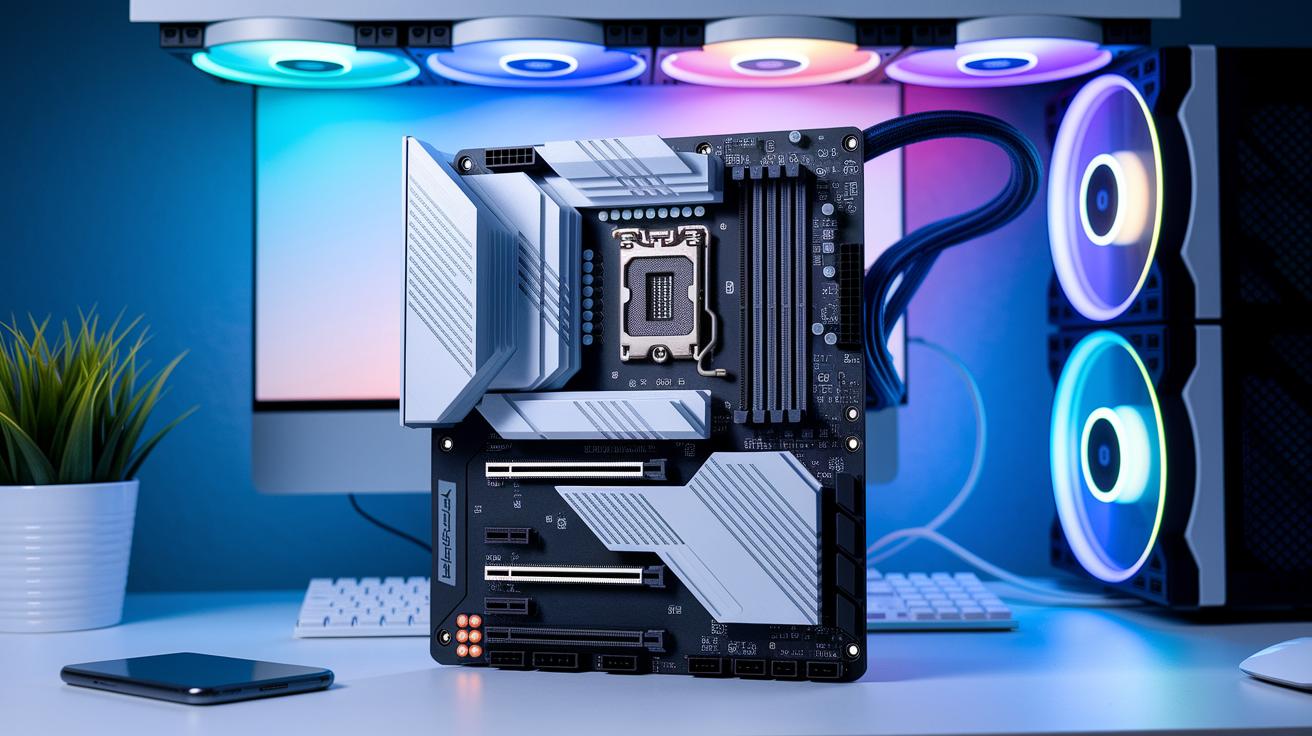
When you push your Intel CPU to perform at peak levels, ensuring system stability is as important as achieving higher clock speeds. Intel Performance Maximizer takes this seriously, it runs smart, algorithm-based tests that double as stability checks. Each core is put through its paces, with longer tests for systems with more cores, confirming your setup can handle the extra power safely.
Keeping an eye on your CPU’s temperature and voltage is crucial. After all, overheating can lead to thermal throttling, risking performance drops or even harming your hardware. Regular stress tests help spot heat spikes early. Once you start the process, monitor those temperature readings, watch the voltage, and be alert for any unusual behavior in your cores.
Key steps include:
- Running built-in tests that mimic real-world tasks.
- Watching for any sudden shifts in CPU voltage or heat output.
- Tweaking your cooling system or power settings based on the data you gather.
| Test Tool | Purpose |
|---|---|
| Intel System Stability Tester | Checks if the system performs optimally under heavy load |
| Intel CPU Stress Test | Keeps track of voltage regulation and detects temperature spikes |
By continuously tracking thermal and voltage metrics, you can nip potential problems in the bud. This proactive approach lets you fine-tune your cooling setup and keeps each performance boost sustainable over time.
Troubleshooting Common Issues in Intel CPU Overclocking Software
Before we dive in, keep in mind that the basics, like turning off any overclocking software that came pre-installed and resetting your BIOS to its default settings, have already been discussed. Now, let's zoom in on some finer details to help you perfect your setup.
Imagine using a hardware monitor as your system's pulse check. By keeping an eye on voltage and temperature readings, you can catch potential issues early on. It's a bit like glancing at your car's dashboard during a race; every reading is a clear signal of how things are performing. For instance, if your monitor shows unexpected spikes, it might be time to adjust either the voltage or the temperature settings.
Then there are the algorithm-driven stability tests. These tests help pinpoint any CPU cores that aren't hitting the safe overclock targets. When a core is flagged, you'll usually need to either reduce the frequency or fine-tune the voltage, ensuring everything stays within safe and stable limits.
Here are a few unique tips to keep in mind:
- Monitor your system’s voltage and temperature with a reliable hardware monitor.
- Use the results from algorithm-driven tests to guide your adjustments in voltage and frequency.
Final Words
In the action of exploring Intel overclocking tools, we examined both automated and manual approaches to boost CPU performance. The article broke down everything from installation steps and system prerequisites to algorithm-based tests and stress testing routines.
We looked at clear instructions for using Intel Performance Maximizer and Intel Extreme Tuning Utility. The insights provided empower users with practical intel cpu overclocking software tips. Embrace these techniques to enhance your computing setup, gain confidence in your tech decisions, and enjoy smoother, more responsive performance.
FAQ
What is the best Intel overclocking tool?
The best Intel overclocking tool blends Intel Performance Maximizer for hassle‐free automation with Intel Extreme Tuning Utility for detailed manual adjustments, offering a balanced mix of ease and control for boosting CPU speeds.
Can Intel CPUs be overclocked?
Intel CPUs can be overclocked by adjusting voltage and frequency, which can enhance performance when performed with compatible hardware and careful monitoring of stability and temperatures.
Is it safe to overclock an Intel CPU?
Overclocking an Intel CPU is safe when you follow proper procedures such as resetting the BIOS, disabling conflicting software, and keeping a close eye on temperature and voltage levels to maintain stability.
How can I download Intel CPU overclocking software for free on Windows 10?
Free Intel CPU overclocking software for Windows 10 is available from Intel’s official website. Before installation, reset BIOS settings and disable previous tuning utilities to avoid conflicts.
What is Intel Performance Maximizer and how does it work?
Intel Performance Maximizer automates overclocking by running algorithm‐based stability tests on each CPU core, which fine‐tune voltage and frequency settings to safely boost overall system performance.