


Ever had that moment when your PC suddenly freezes and you feel completely stuck? A quick hardware reset might be just the fix you need.
Think of it as giving your computer a mini-break, a chance for all its parts to restart and clear out any small glitches that might be slowing it down. This simple trick not only improves performance but also keeps your system running smoothly when things get unexpectedly slow.
In this guide, we’ll walk you through how to power cycle your PC. Step by step, you’ll learn how to turn a frozen screen into a fresh start, all with ease and reliability.
hardware reset pc: Step-by-Step Power Cycle Guide
First, unplug your AC power cable and disconnect any external devices. This simple step stops stray signals and power from interfering with your reset, kind of like taking a quick mental break before tackling a tough problem.
Then, press and hold the power button for about 10 to 15 seconds. This drains any leftover power and helps clear out any components that might be stuck. Think of it like rebooting your phone when one app has frozen during a busy day.
Next, take a short 30-second pause. This wait gives your computer's internal parts time to fully discharge. After the break, plug everything back in and turn your PC on. This cycle resets all your hardware processes, giving your system a fresh start.
If you need an even deeper reset, consider removing the CMOS battery. Start by shutting down and unplugging your PC. Then open it up and carefully remove the battery from the motherboard. Leave it out for about five minutes to force a full reset of your firmware settings. Once you've reinserted the battery and reconnected everything, power your system back on. This extra measure can help clear persistent issues that basic resets sometimes miss.
This hands-on reboot skips over software dependencies entirely. It not only clears out residual electrical charges but also resets critical boot configurations. In doing so, your PC is better prepared to handle modern processing demands and recover from unexpected power interruptions.
Hardware reset pc: Quick, Reliable Fix

Even top-tier systems, like one powered by an AMD Ryzen 9 7950X3D with 32 GB of DDR5, can sometimes freeze or slow down unexpectedly. When your PC seems unresponsive despite its powerful hardware, a hardware reset might be just the quick fix you need. This simple restart gives your system hardware a fresh start, clearing out lingering driver bugs and minor glitches that can hold back performance.
We suggest running a reset at least once a year. Regular use can build up bloatware and outdated firmware that weigh down your machine during startup, much like rebooting a smartphone when an app locks up. And if you're planning a major upgrade, say a new GPU or additional storage, resetting beforehand can remove old drivers or misconfigured settings that might clash with your new components.
Sometimes, a hardware reset does more than maintain your system, it can save the day. In instances where malware infiltrates firmware components that antivirus tools might miss, a reset offers an effective recovery method. It also serves as a handy diagnostic tool when boot failures or power issues arise, ensuring your PC resets properly and works its best.
hardware reset pc Safety Precautions and Preparation
Before you start a hardware reset, take a moment to back up your most important files, think documents, photos, and anything you wouldn’t want to lose. This simple step helps keep your data safe while you work with your PC’s internals. Also, it’s smart to work on a surface that won’t conduct electricity, and adding an antistatic wrist strap to your routine can protect those delicate components from any stray static charges.
It’s a great idea to label your cables and snap a few photos of how everything is connected. These small actions mean you won’t have a hard time reconnecting everything properly once your reset is done. And before you open up the case, make sure to power down the system completely by switching off the PSU, unplugging the device, and waiting a full 60 seconds. This pause lets any residual charge fade away, reducing the risk of shocks or accidental damage.
For a smooth, step-by-step reset, follow these clear safety precautions:
- Back up your data.
- Use ESD protection (that’s a technique to avoid static electricity issues).
- Open your case safely.
- Map and label your cables.
- Confirm that the device is fully powered off before proceeding.
hardware reset pc via BIOS and UEFI Settings
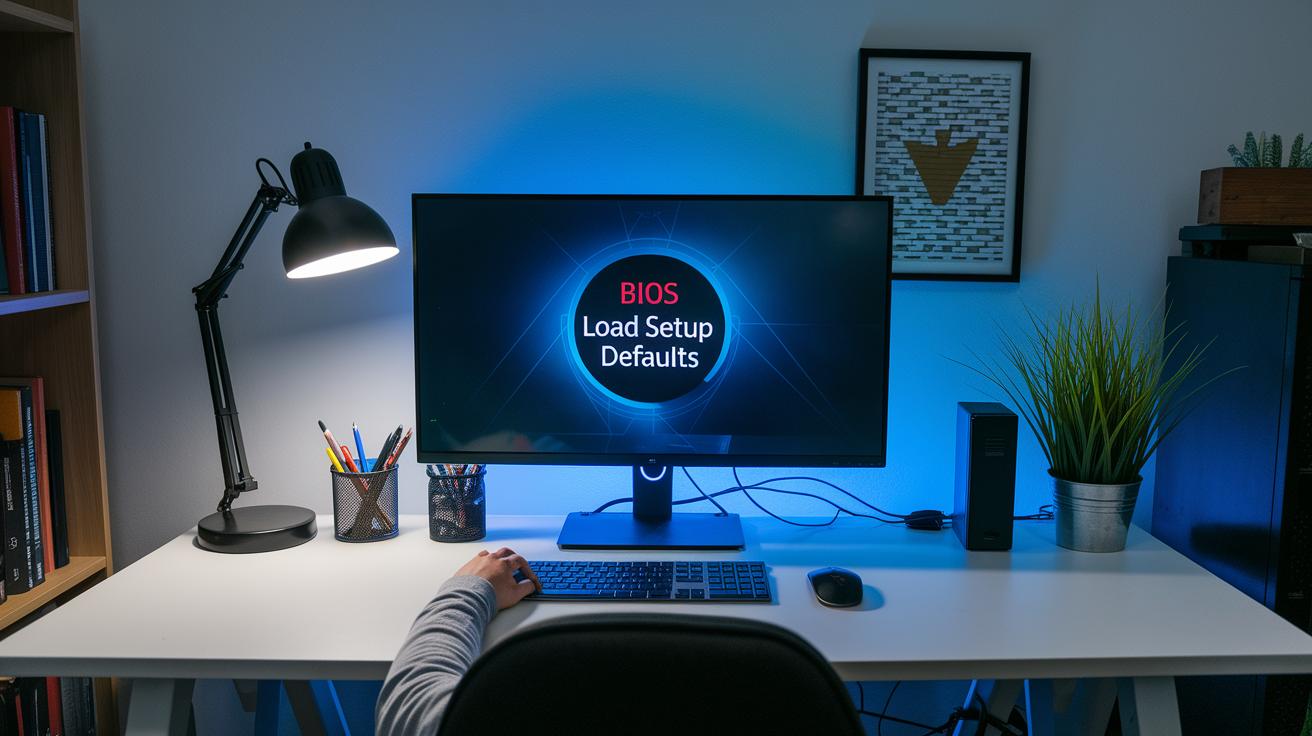
If you're looking to reset your computer’s hardware settings without reinstalling your operating system, start by rebooting and pressing Delete or F2 during the startup process. Once you're in the BIOS, find options like "Load Setup Defaults" or "Restore Factory Settings." These choices clear minor misconfigurations and refresh your firmware settings, giving you a clean slate.
For those using UEFI, common in Windows 11 systems, head into your Settings app, navigate to Recovery, select Advanced startup, and then pick UEFI Firmware Settings. This route lets you tweak boot variables and device priorities to fix startup issues caused by misconfigured firmware.
Clearing CMOS via Jumper
For a deeper reset, locate the CMOS jumper on your motherboard. Simply move the jumper to the clear position, wait about 10 seconds, and then switch it back. This process drains any residual power and wipes out old hardware settings, which can resolve persistent firmware errors.
Restoring UEFI Defaults
Within the UEFI interface, look for the option to restore default settings. Selecting this will reset boot variables and adjust device priorities so that all your hardware is properly recognized at startup. This simple step helps stabilize system performance by bringing your firmware back to its original state.
hardware reset pc with Command Line and External Media
When Windows won’t load, you can still get your system back on track using command line recovery. Just hold down Shift and click Restart to open the Advanced Startup menu. From there, select Command Prompt and type the command shutdown /r /o. This instructs the computer to reboot in a way that bypasses the normal boot problems, effectively resetting your system offline. Think of it like this: if your PC stalls during startup, a quick Shift+Restart followed by shutdown /r /o can be your fast fix.
Using Advanced Startup Command Prompt
Here, once you reach the Command Prompt, you manually kick off the reboot with the shutdown command. This method skips the regular graphical interface, triggering a hardware-level reset instead. It’s especially handy if your operating system is acting up or if login issues are keeping you out. By forcing the computer into recovery mode, you can adjust system settings without getting stuck on a malfunctioning screen.
Bootable USB Reset Method
If you can’t sign in at all, creating a bootable USB with the Windows Media Creation Tool can be a lifesaver. All you have to do is prepare the USB drive, plug it in, and boot your computer from it. This approach bypasses any password hurdles, allowing you to either perform a full system reset or reinstall Windows completely from the boot menu. It’s a reliable backup plan for when the usual recovery options just aren’t available.
Hardware reset pc: Quick, Reliable Fix
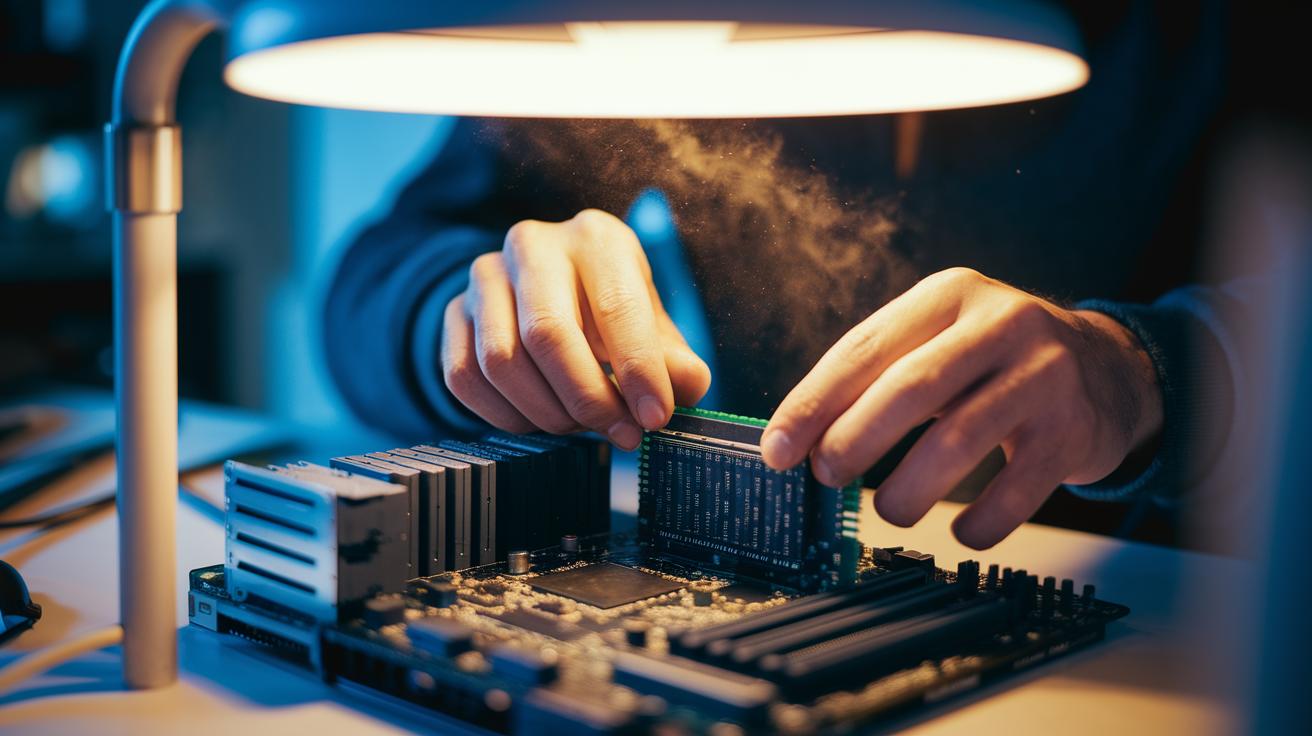
After you’ve done a hardware reset, it’s a good idea to walk through some troubleshooting and diagnostics to make sure your system is firing on all cylinders. Even a thorough reset might not iron out every issue. For instance, if you hear unexpected beep codes during startup, your motherboard might be trying to tell you that one of its components isn’t in place. A series of short beeps could be a hint that the RAM isn’t seated correctly, so it really pays to listen closely.
Begin by reseating essential components like your RAM, GPU, and power connectors. Testing each memory stick one by one can help pinpoint a faulty module. Try this checklist:
| Step | Action |
|---|---|
| 1 | Listen for beep codes during startup |
| 2 | Reseat RAM, GPU, and power connectors |
| 3 | Run a diagnostic test with tools like MemTest86 and motherboard utilities |
| 4 | Update your BIOS/UEFI firmware to the latest available version |
| 5 | Check Device Manager for any driver issues and reinstall chipset and storage drivers if needed |
Next, run additional diagnostics to check your system’s memory and chipset integrity. Using firmware update tools provided by your vendor not only clears out bugs but can also speed up boot time. And don’t forget to make sure that Device Manager isn’t flagging any driver errors, sometimes, even a powerful PC can be held back by driver issues. A final round of thorough diagnostics will help confirm that any hardware startup hiccups are addressed, leaving your PC ready to perform day in and day out.
Advanced and Alternative hardware reset pc Techniques
When your PC locks up, sometimes you just have to roll up your sleeves and go for a hands-on reset. A handy trick is using the reset button on your case. With a simple press, you can reboot your system without diving into software menus.
Another neat method is jumper-based CMOS clearing. Follow your motherboard’s guide to move the ClrCMOS pins, wait about 10 seconds, and then set them back. This resets your firmware settings without disconnecting power, offering a manual refresh without having to open up the system.
If you need an extra push, try toggling the PSU rocker switch in a specific sequence, flip it off, then on, off again, and finally on. This process drains any leftover electrical charge, ensuring a complete cold boot.
And if you prefer keeping things modern and simple, external USB reset dongles are a great alternative. They trigger a hardware-level restart without requiring you to open your PC case, making for a quick and easy fix.
- Case-mounted reset switch
- Jumper-based CMOS clearing
- PSU toggle sequence
- USB-based hardware reset tool
Each of these advanced techniques provides a solid workaround when normal methods just don’t cut it, giving you that much-needed immediate hardware reset.
Final Words
In the action, our guide walked you through a complete walkthrough, from disconnecting cables and pressing the power button to BIOS adjustments and command line resets. We broke down each step, ensuring even the tricky techniques were clear and safe. The article covers everything from safety measures to troubleshooting after a hard power cycle. With these insights, you're set to execute a hardware reset pc confidently and enjoy smoother performance on your system. Here's to smarter tech maintenance and a more reliable computing experience!
FAQ
How do I perform a hardware reset on my PC?
A hardware reset on your PC means disconnecting the power cable and peripherals, holding the power button for 10–15 seconds to drain any residual charge, then reconnecting and restarting the system.
Does a hardware reset delete everything on my PC?
A hardware reset simply power cycles the system to clear ongoing issues. It does not erase your files, applications, or data stored on the hard drive.
Should I perform a hardware reset on my PC?
A hardware reset is useful when your PC is unresponsive or experiencing persistent hangs. It serves as a quick troubleshooting step before considering software-focused repairs.
How do I factory reset my PC on Windows 10 and Windows 11?
Factory resetting Windows restores your system to its original configuration. This process typically involves booting into recovery mode using Shift+Restart or a bootable USB, allowing offline reinstallation of the operating system.
Are F11 or F12 keys used for factory resets?
The function key for initiating a factory reset can vary by manufacturer. Often, F11 is used to access the recovery partition, but checking your PC’s manual is the best way to confirm the correct key.