

Ever wonder if your computer could run a bit smoother without spending a fortune on upgrades? Gigabyte Control Center gives your system that perfect tune-up, kind of like adjusting an instrument until each note sounds just right.
This smart software lets you easily control fan speeds, tweak performance settings, and even customize your RGB lighting. By gathering these features in one handy spot, it saves you time and keeps your computer performing at its best.
Curious how these clever adjustments can boost your setup? Stick around to find out.
Gigabyte Control Center Boosts Your System Performance
Gigabyte Control Center is a robust software suite that puts all your Gigabyte hardware controls in one neat package. It effortlessly blends performance tuning, fan management, and personalized RGB lighting into a single, user-friendly interface. Think of it like adjusting the settings on your favorite audio setup, each click fine-tunes your system to sound just right.
The software works with a wide variety of Gigabyte motherboards. You’ll find support for Intel models like the Z890, Z790, and Z690, as well as B-series boards such as the B860, B760, and B660. GCC equips you with smart tools, including:
| Feature | Description |
|---|---|
| Performance Tuning | Adjust CPU clocks and voltages to suit your needs |
| Fan Speed Control | Manage fan speeds with dynamic curves |
| RGB Fusion Lighting | Customize lighting effects and synchronize them effortlessly |
| BIOS Updater | Keep your motherboard’s firmware up-to-date |
| Real-time Monitoring | Keep an eye on your hardware’s performance continuously |
| System Optimization | Receive tailored recommendations to boost performance |
It’s designed to work seamlessly on Windows 10 and Windows 11, with an extra Linux module if you need that flexibility. Before jumping into the installation, double-check that your operating system is up to date and that you download the software from a reliable source. Also, if you have older Gigabyte applications like previous versions of RGB Fusion installed, it’s a good idea to remove them to avoid any hiccups. A little tip: run the installer as an administrator to speed up your setup. Keeping your drivers and system components current will ensure GCC runs smoothly and lets your system shine with every feature.
Installing and Setting Up Gigabyte Control Center

Before you dive in, double-check that your operating system is up to date and compatible. Make sure you have Microsoft .NET Framework (which helps run many programs) and the Visual C++ Redistributables already installed. Also, it’s a good idea to remove any older Gigabyte software, like previous RGB Fusion versions, to prevent conflicts that could lead to missing files or a problematic install. This upfront cleanup sets you up for a hassle-free experience.
Next, follow these steps:
- Download the official installer and check the checksum to ensure the file isn’t damaged.
- Make sure the necessary .NET Framework and Visual C++ Redistributables are installed.
- Run the Gigabyte Control Center installer with administrator rights.
- Restart your computer so the changes take effect.
- Verify the module is visible in Settings under Apps.
After installation, decide whether you want the control center to start automatically with Windows or not. Adjust the settings to match your system’s performance needs, and take a moment to ensure your preferences are saved correctly. This careful, step-by-step process helps ensure your machine runs smoothly and lets you easily manage your hardware settings with the new control center.
Navigating the Gigabyte Control Center Interface
The updated Gigabyte Control Center neatly arranges its many tools into dedicated tabs, making it easy for you to navigate and find what you need. Its dashboard gives you a quick snapshot of system performance alongside easy access to several useful modules.
Step into the Performance tab and you'll discover overclocking options that let you fine-tune your chip settings, much like adjusting the parts of a finely tuned engine. Over in the Display tab, you can enjoy the RGB Fusion feature with its clean Sync UI that makes personalizing your lighting both simple and visually engaging.
The Smart Quick Booster offers preset performance modes for those moments when you need a fast adjustment, while the Board Explorer shows a clear, visual map of your hardware components so everything is right at your fingertips.
And don’t forget: if you've adjusted settings to perfection, be sure to save your custom layouts. You can also dive into more advanced options through clearly marked controls, tailoring every detail to match your unique system. It’s all crafted to offer you a seamless, interactive experience where you’re in complete control.
Customizing RGB Lighting and Fan Control in GCC
RGB Fusion Setup
GCC’s RGB Fusion tool makes creating striking lighting effects feel effortless. The interface welcomes legacy Fusion 2 devices and features an upgraded Sync engine that keeps your custom effects smooth and reliable. All you need to do is pick the LED zones you want to light up and choose an effect like Breathing, Cycling, or Static. Imagine your LEDs softly pulsing in harmony, turning your system into a lively display of color.
Fan Curve Configuration
On the performance side, the interactive fan curve tool gives you control over fan speeds based on temperature thresholds, letting you set specific RPM targets for each range. It’s as simple as marking points on a graph where your cooling should kick in. You can create profiles such as “Silent Mode” (low RPM under 50 °C), “Balanced” (a smooth RPM ramp), and “Performance” (max RPM when temperatures hit over 70 °C). If you’re into visual sync, you might try “Wave” for an RGB gradient or “Pulse” for a breathing effect as your system load changes.
This dual approach to customizing both RGB and fan settings lets you fine-tune your system’s looks and thermal performance, giving you a personalized edge that works perfectly for your setup.
Monitoring System Performance and Optimization
In Gigabyte Control Center’s Monitoring tab, you get a live, easy-to-read snapshot of your system’s vital stats. It shows CPU temperature, fan speeds, voltages, and overall power usage, all in real time. Alerts are set up to notify you if anything strays from the norm. Plus, thanks to the DDR5 SPD fix, your memory details are displayed accurately so you can catch issues early.
| Metric | Normal Range | Recommended Action |
|---|---|---|
| CPU Temp | 30–70 °C | Adjust fan curve |
| Fan RPM | 800–3,000 | Profile tuning |
| Voltage | 1.0–1.4 V | Overclock checks |
| Power Usage | 50–200 W | Optimize workloads |
Balancing performance with noise control is all about fine-tuning your fan profiles. For example, if you’re after a quiet setup, a gentler fan curve might be best, while heavier use could call for stronger cooling. Regular updates also keep your monitoring tools in sync with your system’s needs.
Keep in mind that simple energy-saving measures, like letting your system scale down power when idle, can make a big difference. A quick check of your cooling performance ensures that everything stays within its optimal range, keeping your system running smoothly and efficiently.
Troubleshooting Gigabyte Control Center Issues

If Gigabyte Control Center suddenly stops responding or gets stuck on that initial splash screen, it could be from corrupt files, incomplete updates, or even old software interfering with the new. Here’s a friendly walkthrough to help you get things back on track.
- Uninstall the Control Center, then reinstall it fresh so any glitches have a chance to clear out.
- Use Device Manager to update your key drivers. This step refreshes how your motherboard and GPU chat with each other.
- Make sure your .NET Framework and Visual C++ Redistributables are properly installed or repaired to bring back those critical system components.
- Remove the %AppData%\GigabyteControlCenter folder to clear out any corrupted settings.
- In Windows Security, disable Core Isolation > Memory Integrity since sometimes it can block the software from working smoothly.
After you’ve gone through these steps, make sure Windows is fully up-to-date and look for any firmware patches that might address compatibility issues. Still getting error messages? Consider exploring alternative utility applications that could be a better fit for your system. Small configuration tweaks often do the trick, and keeping your software updated is key to smooth performance. Regular maintenance and a quick check on your security settings can save you a lot of headaches down the line.
Advanced BIOS and Firmware Integration with GCC
GCC makes firmware updates a breeze with its built-in BIOS updater tool, especially designed for dual-BIOS motherboards. It automatically downloads the updates, checks file integrity through checksum verification, and even offers recovery options, so you can manage your BIOS confidently without the usual hassles.
Using the BIOS Updater
Here’s a quick guide for a smooth update:
- Pick your board model.
- Select the proper BIOS file.
- Check the checksum to ensure the file is intact.
- Initiate the update via the GCC interface.
- Reboot your system to complete the process.
Following these steps clears up any doubts during the update and keeps your system protected while you enjoy the latest firmware upgrades.
Dual BIOS Management
For those using systems with dual BIOS, GCC makes switching between your primary and backup BIOS simple and intuitive. It even provides a fail-safe recovery mode, letting you switch back to a secondary BIOS easily if something goes wrong. It’s a good idea to back up your current BIOS before starting any update. Plus, doing monthly firmware checks and reviewing update logs helps protect your hardware. This proactive approach not only reduces risks but also ensures your device performs reliably over time.
Managing Updates and Community Support for GCC
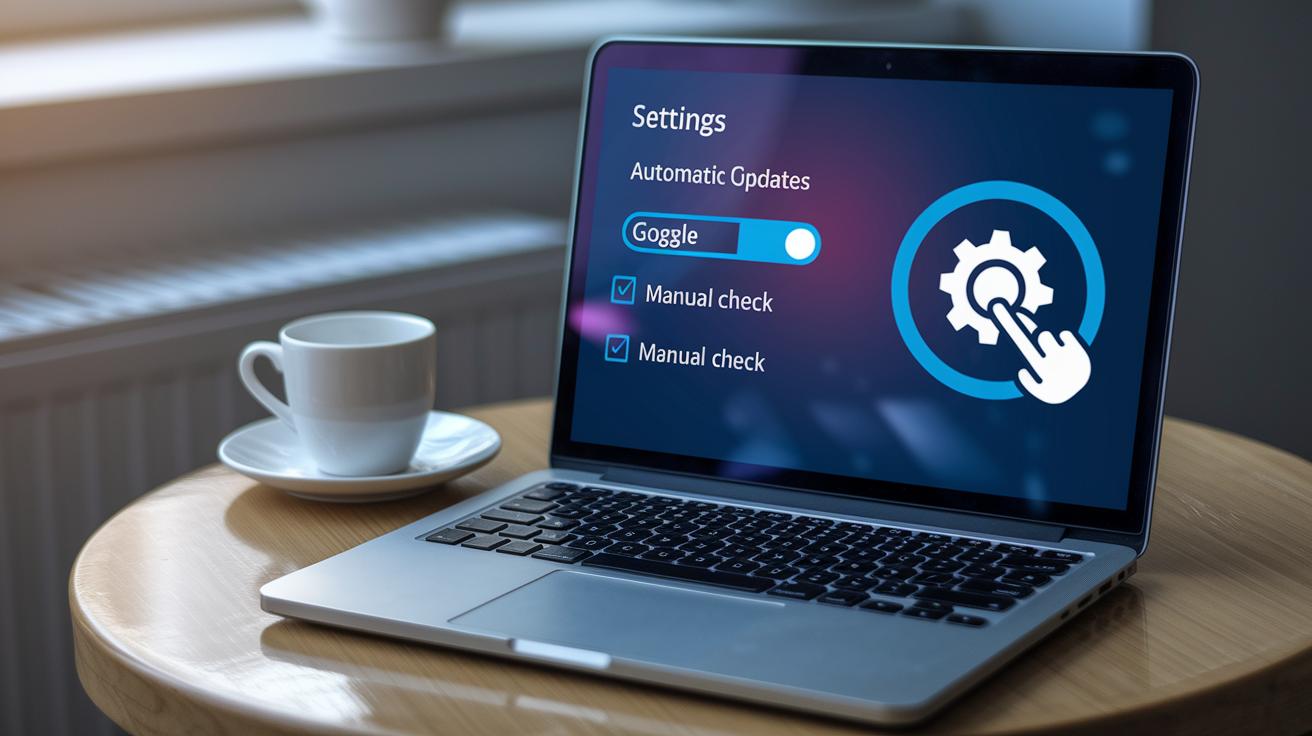
Dive into the Settings > Updates section, and you'll see options that let you either automate GCC updates or check for them manually. Scheduled utility updates make it simple to catch every new release, ensuring that enhancements like SPD fixes and UI improvements are applied consistently. With just a few clicks, you get clear, step-by-step instructions right on the interface.
For those hungry for more details, the official release notes are just a click away on Gigabyte’s website. Many users also join community hubs like Reddit and Gigabyte discussion boards, where genuine feedback and shared experiences offer extra insights into the latest features and tweaks.
Don’t hesitate to share your own thoughts in these forums. Your feedback is essential, it helps steer future improvements and guides the development of new functions in GCC.
Final Words
In the action, we explored the gigabyte control center's core features, from performance tuning and fan control to RGB lighting adjustments. We walked through installation steps, interface navigation, and advanced BIOS updates while offering solutions for common issues.
Each section provided clear insights designed to simplify tech decisions without overwhelming details. The gigabyte control center stands out as a reliable tool that makes exploring and managing your hardware both straightforward and enjoyable. Stay positive and embrace the ease of streamlined control!
FAQ
Where can I download Gigabyte Control Center?
The official Gigabyte Control Center download is available on Gigabyte’s website, where you can securely verify the installer package and follow download instructions to ensure a safe installation.
What does the Gigabyte Control Center do?
The Gigabyte Control Center provides a unified interface to manage performance tuning, fan speed, and RGB lighting. It integrates several utilities to streamline hardware adjustments within one software hub.
What is the Gigabyte Control Center Verification Code?
The Gigabyte Control Center Verification Code confirms that a downloaded file is authentic. It helps users verify that the installer package is secure and has not been modified during distribution.
What should I do if Gigabyte Control Center is not working?
The Gigabyte Control Center may fail to open if outdated drivers, missing dependencies, or legacy software conflicts are present. Reinstalling the software after updating prerequisites like .NET Framework can help resolve issues.
How do I install Gigabyte Control Center?
The Gigabyte Control Center install process involves removing outdated Gigabyte software, downloading the official installer, ensuring prerequisites like .NET Framework are in place, and then running the installer as an administrator.
How does Gigabyte Control Center handle fan control?
The Gigabyte Control Center fan control feature lets users create custom fan curves based on temperature thresholds. It provides an interactive interface to balance noise levels and cooling performance effectively.
Can Gigabyte Control Center support laptops?
The Gigabyte Control Center for laptops has limited functionality compared to desktops. Laptops might not support all features, such as advanced fan controls and RGB customization, so compatibility should be checked before installation.
How do I open the Gigabyte motherboard menu?
The Gigabyte motherboard menu opens by pressing designated keys (commonly F2 or Delete) during startup. The exact key sequence can be found in your motherboard’s manual for guidance.
What communities discuss Gigabyte Control Center?
Gigabyte Control Center discussions are popular on platforms like Reddit, where users share tips, troubleshooting advice, and customization experiences that can help guide your own setup and usage.