


Have you ever wondered if your computer is truly set up for smooth, glitch-free performance? It might seem a bit overwhelming at first, but breaking the process down step by step makes it much more manageable. Start by carefully unboxing your device and setting it up in a neat, secure space. Each step builds toward creating a seamless workspace that works for you.
This guide walks you through simple, effective methods to get your computer running at its best. In doing so, you'll soon enjoy a consistently hassle-free performance, almost like turning a daunting puzzle into an enjoyable routine.
Step-By-Step Computer Setup Essentials
-
Unbox your computer carefully
Start by gently removing your computer from its box. Make sure you have all the parts, cables, manuals, and peripherals, in one place. It’s a bit like opening a small treasure chest and savoring each found gem. -
Prepare your workspace
Pick out a clean, dust-free surface with ample desk space and close power outlets. A well-ventilated area not only keeps the machine cool but also sets the scene for a clutter-free setup. Think of it as creating your own comfy workstation in a bright room where everything has its spot. -
Connect essential hardware
Begin by plugging in the power cable to give your computer the energy it needs. Next, attach your monitor using HDMI, DisplayPort, or VGA based on your screen’s inputs. Then, secure the Ethernet cable for a wired connection and plug in your USB devices, like the keyboard and mouse. Picture it as assembling a puzzle, each piece clicks into place to complete the picture. -
Verify cable connections
Before you hit the power button, double-check each connection. Loose cables can lead to frustrating glitches once the computer boots up, kind of like a wobbly shelf that could come tumbling down. -
Power up and begin the setup wizard
Press the power button and watch as your computer springs to life. Follow the on-screen guide to select your language, set the time zone, and log in with your user account (using a Microsoft Account if you’re on Windows). This step lays a solid foundation for a smooth, seamless computing experience.
Hardware Connections and Cable Management for Your Computer Setup

Start by setting up your workspace in a dust-free zone with plenty of desk space and multiple power outlets. A clean area not only protects your computer and peripherals but also gives you room to neatly organize your cables. Place your computer in a central spot, close enough to outlets that can easily support your monitor, printer, and any other devices you plan to use.
Now, let’s talk about connecting the cables. Whether you’re linking monitors with HDMI, DisplayPort, DVI, or VGA cables, make sure each connection is secure. For your wired network, confirm that the Ethernet cable is plugged in tightly to avoid any drop in signal. And don’t forget the USB cables for your keyboard, mouse, or other gadgets. Think of it like setting up a finely tuned machine, each cable plays a key role in keeping everything running smoothly.
If you’re planning on using two or more monitors, place them side by side for a natural, seamless view. Imagine hanging two pieces of art perfectly aligned; this setup not only looks great but also lends to a more comfortable and productive environment.
Finally, wrap up by bundling and routing your cables with practical tools like cable ties or Velcro straps. This approach minimizes clutter and boosts airflow around your devices. Plus, clear cable pathways can help prevent accidental disconnections and keep your workspace looking as organized as it is efficient.
Operating System Installation and Software Configuration in Computer Setup
Start by booting your computer from a USB drive or DVD to install your chosen operating system, whether that's Windows, macOS, or Linux. In no time, you'll see a setup wizard pop up that asks for your language, region, and time zone, while also guiding you to create or sign into your user account. Think of it as setting up a custom workstation where every selection has a purpose.
After setting up your account, take a moment to initiate system updates. These updates patch up security holes and keep your computer safe, much like giving it a regular checkup to fend off any new risks.
Then, it's time to install the essential applications you use every day. Pick a web browser you’re comfortable with, Chrome, Firefox, Safari, or Edge, and add an office suite and a reliable antivirus program. These apps are like the trusty tools in your digital kit, laying the groundwork for smooth everyday performance.
Wrap up the process by personalizing your desktop. Adjust your resolution, brightness, and the layout of your taskbar or Dock. Place your shortcut apps where you know you'll find them easily to create an efficient and inviting home office setup.
Data Backup and Security Configuration During Computer Setup

Start by building a strong backup routine that really gives you peace of mind. Use cloud services for quick, anytime access to your files while also keeping physical backups on an external hard drive. This way, you're creating an extra layer of protection that works like an insurance policy for your data. For example, following the 3-2-1 rule, which means keeping three copies on two different types of media, with one copy stored off-site, ensures you're well covered if something goes wrong with a local copy.
To set up your backups, consider these steps:
- Use cloud solutions for fast, on-demand file restoration (check out our guide on data privacy solutions).
- Keep external hard drives for a reliable, physical backup.
- Stick with the 3-2-1 method to create a comprehensive safety net.
Once your backups are in place, shift your focus to securing your system. Installing antivirus and firewall software, and updating them regularly, helps protect against malware. Adjust your system settings to enable automatic scans, enforce strong password habits, and apply encryption to keep sensitive data safe. These actions form a robust defense, making your computer a tougher target for cyber threats.
And if you're retiring an old computer, be sure to completely wipe its data. This step not only secures your personal information but also paves the way for a smooth transition to your new setup.
computer setup: Enjoy Hassle-Free Performance
Give your system a quick boost by upgrading essential components like RAM and SSD storage. More memory means everyday tasks become snappier and switching between applications feels smooth. And with an SSD, your computer wakes up fast, think seconds rather than minutes.
Improve your graphics by turning on hardware acceleration for video and image tasks. It’s just like setting the right gear in a well-tuned engine. Tweak your power plans and adjust GPU settings to balance energy use with performance. Then, fine-tune your display by choosing the ideal resolution, refresh rate, and color calibration so every image looks vibrant and true to life.
Customize your workspace by choosing which apps start up automatically and by setting keyboard shortcuts that suit your routine. It’s a bit like creating your own control panel where every click makes a difference. By incorporating these simple tips, you can enjoy a computer setup that runs reliably, efficiently, and exactly the way you need it to.
Troubleshooting Common Computer Setup Issues
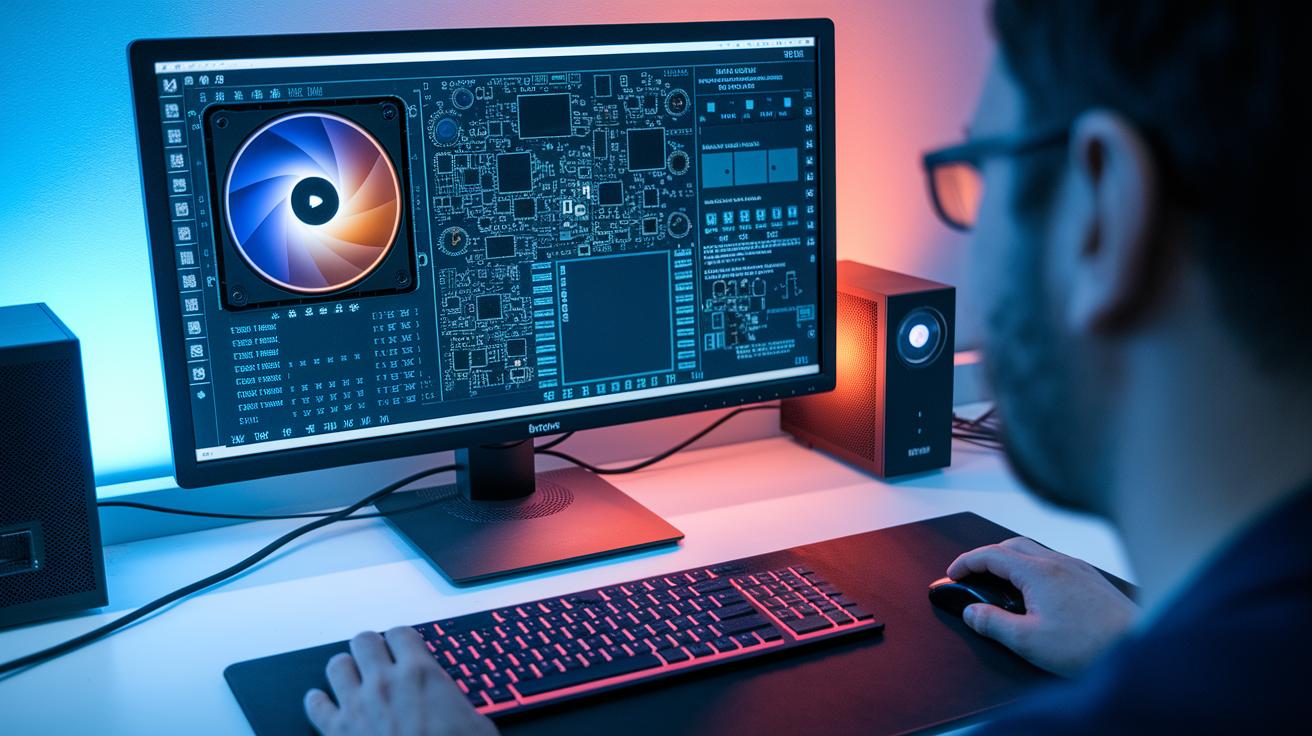
When your system isn’t behaving as expected, start by taking a quick look at the basic connections. No display? First, check that your monitor’s power cable is securely plugged in, the right input is selected, and all the cables are fastened tightly. I once discovered a slightly loose HDMI connection, and a quick adjustment brought my screen back to life.
If your computer refuses to boot, it might be a BIOS/UEFI setting issue. Make sure the boot order is set up correctly, and verify that your bootable media, whether it’s a USB drive or DVD, is in good shape and functioning properly.
For those pesky network problems, think of your Ethernet cable as a bridge connecting you to the internet. Ensure it’s firmly connected to both your computer and router. And if you’re using Wi-Fi, double-check your router settings and Wi-Fi password to keep things running smoothly.
When peripherals like your keyboard, mouse, or printer start acting up, the culprit is often outdated or missing drivers. Refreshing those drivers with an update or reinstall can quickly bring your devices back to life.
Facing operating system or software errors? Running system diagnostics, rolling back a recent update, or restoring from backups can help reset your computer to a reliable state.
Final Words
In the action of setting up your computer, you’ve journeyed through unboxing, hardware connections, and cable organization. You also tackled the operating system setup and bolstered security with solid backup practices, smart upgrades, and ready troubleshooting. Each step of this computer setup guide builds confidence and simplifies tech decisions. Enjoy the process of transforming a collection of components into your personalized, powerful workstation, and look ahead to even more smart, streamlined configurations.
FAQ
What is in a computer setup?
A computer setup includes hardware components like a monitor, CPU, keyboard, mouse, and sometimes a printer, alongside necessary cables and software installations to launch your device.
How do you set up a computer step by step?
The process involves unboxing the components, connecting essential cables such as power, HDMI, and USB, powering on the system, and completing the operating system’s initial setup wizard.
What is the average cost of a computer setup, and how much might Geek Squad charge?
The average cost of a computer setup varies with hardware and software needs, while Geek Squad’s charges may fall into a moderate range, typically around $100 to $150 per installation service.
What are some computer setup ideas for gaming and home use?
For gaming setups, prioritize high-refresh monitors and powerful graphics cards, and for home use, create an ergonomic workspace with proper ventilation and clear cable organization.
What does a computer setup drawing and naming mean?
A computer setup drawing refers to a simple diagram that maps out your hardware layout, while naming your setup is a personal way to assign an identity that reflects its use.
How do you integrate a printer into your computer setup?
Integrating a printer involves connecting it via USB or wireless means and installing the right driver software so that it communicates seamlessly with your operating system.