
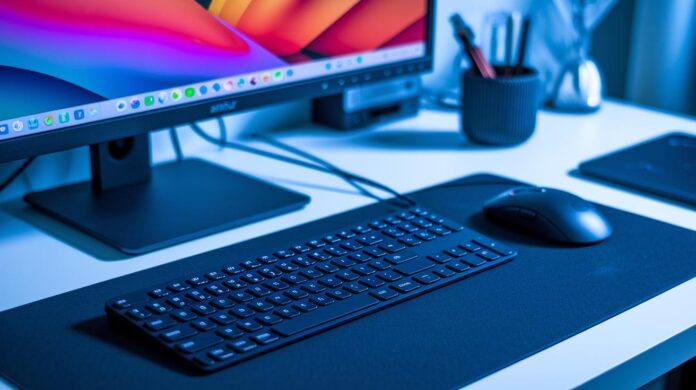
Ever wondered if your computer could perform even better with a few well-chosen accessories?
Computer peripherals are the unsung heroes that take everyday interactions and make them really smooth. Imagine your keyboard and mouse as quick messengers delivering your ideas to the system, while your monitor and printer bring those ideas back to life in vivid detail.
In this post, we'll explore these essential devices and explain how selecting the right tools can transform your setup and boost your workflow. It’s a bit like swapping out basic ingredients for your favorite gourmet ones, you end up with a system that not only works seamlessly but also feels custom-tailored to your needs.
Curious to see what a difference the right peripherals can make? Let’s dive in and get started!
Understanding Computer Peripherals: Definitions, Categories & Uses
Computer peripherals are devices that let you input information into or pull data out of a computer, extending its basic functions. Often called computer parts, these gadgets allow you to interact with your system in creative ways, from typing up documents to playing high-quality videos, making your machine much more versatile.
We can break them down into three main types. First are input devices like keyboards, mice, and scanners. These tools help you send data into your computer; for instance, every keystroke on a keyboard sends a unique signal, and today’s mice often use laser light tracking for improved precision. Then, you have output devices, such as monitors, printers, and speakers, which display or play back data for you. Lastly, there are devices that handle both roles, input and output, like hard disks, USB drives, and network interface cards. These combine the tasks of storing and transferring information, neatly bridging the gap between sending and receiving data.
Understanding these differences is key when deciding on new hardware. Knowing whether you need a gadget solely for input, just for output, or one that does both can make setting up your computer a breeze and help you avoid those annoying compatibility issues.
Input Device Peripherals: Keyboards, Mice, Scanners & Webcams
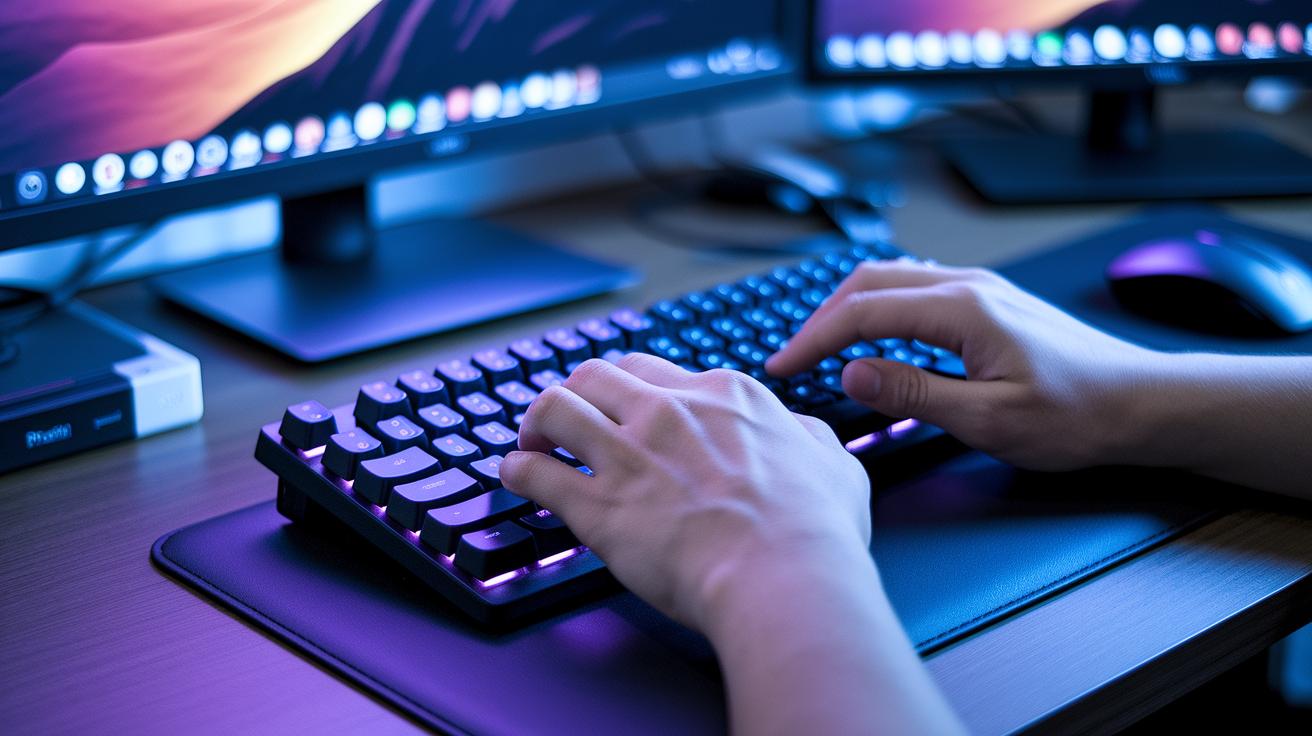
Input peripherals are like the friendly translators between you and your computer. They take your physical actions, like pressing a key or moving a mouse, and convert them into digital signals so your tasks feel smooth and natural.
Keyboard Basics
Keyboards are your primary way to input instructions. Each keypress sends a command straight to your computer’s processor, and different switch types offer a variety of tactile sensations, some keys feel soft while others provide a firm click. Technologies like key rollover make sure that when you hit several keys at once, every press is captured accurately. For example, a mechanical keyboard might send unique signals for each key, making typing feel effortless and precise.
Mouse Mechanics
Today’s mice use laser tracking for pinpoint accuracy, replacing the older ball-tracking models. They usually come with a couple of buttons and a scroll wheel, all designed to give you smooth, intuitive control. Features such as DPI (dots per inch, which measures sensitivity) and polling rate influence how fluidly your cursor glides across the screen, making sure every movement counts.
Scanner Functions
Scanners transform paper documents into digital images by capturing details at the pixel level. With options for various optical resolutions and color depths, these devices ensure that both text and images come through clearly and accurately, ready to be stored or shared in digital form.
Webcam Features
Webcams let you capture live video, which is perfect for video chats or recording important moments. Many models support high frame rates and autofocus, and they typically connect via USB to deliver clear video at resolutions like 1080p or even higher.
| Device | Function |
|---|---|
| Keyboard | Turns keystrokes into digital commands |
| Mouse | Controls the cursor with precision |
| Scanner | Converts physical documents into digital images |
| Webcam | Captures live video for conferencing and recording |
Output Device Peripherals: Monitors, Printers & Speakers
Output devices connect digital data to our everyday experiences, turning computer signals into images, paper prints, and sound. They essentially bring your digital world to life, ensuring that information is not locked away but clearly visible and audible.
Think of your monitor as a digital window into your computer’s world. It shows images stored temporarily in memory, so if the power goes out, any unsaved work disappears, like a whiteboard that wipes clean without power. It’s a neat reminder to hit save regularly.
Speakers add another layer of life to your tech setup. Whether they’re built into your laptop or attached as external devices, they transform digital sound files into clear audio, enriching everything from a quick video chat to a binge-watching session. Their role is just as vital in a professional meeting as it is during a cozy movie night.
Printers, on the other hand, turn digital files into permanent, tangible documents. Each type serves a different purpose. Dot-matrix printers excel at handling forms with multiple copies using impact printing. Inkjet printers are perfect for detailed photo printing by releasing tiny droplets of liquid ink, while laser printers stand out for high-volume text work thanks to their speedy, precise electrostatic toner process.
| Printer Type | Use Case | Key Technology |
|---|---|---|
| Dot-Matrix | Multi-part forms | Impact pins |
| Inkjet | Photo printing | Liquid ink droplets |
| Laser | High-volume text | Electrostatic toner |
Choosing the right output device can make all the difference. It boosts your day-to-day productivity and ensures your presentations and media come out just as you envision.
Storage & Input/Output Modules: Hard Drives, USB Drives & NICs
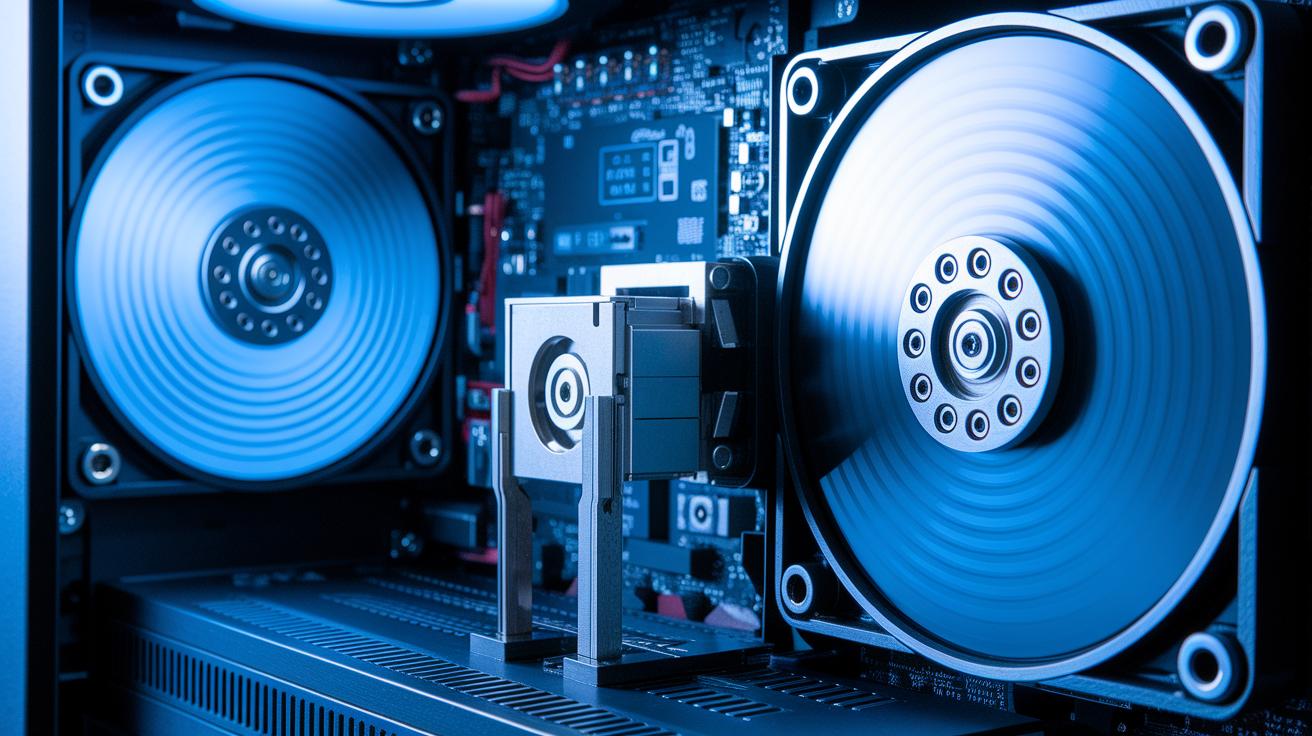
Input/output storage modules act as the bridge between your computer’s inner workings and the everyday tasks you rely on. They store data and transfer it without overcomplicating your setup, giving your system an easy boost in capacity and connectivity.
Hard Disk Functionality
Hard disks are the tried-and-true workhorses of data storage. They use spinning platters to hold large amounts of information and rely on read/write heads that skim close to the surface, finding data stored in tiny magnetic patterns. Think of them as very precise librarians. And with cache buffers holding frequently used data temporarily, you get a smoother experience, ideal for heavy tasks like video editing or running large software.
USB Drive Portability
USB drives are all about convenience. They’re small, portable, and ready to transfer files between devices without a fuss. Available in different shapes and sizes, they support speeds like USB 2.0 for day-to-day tasks or USB 3.0 when you need data to move fast. Plus, some models come with encryption features so your sensitive information stays safe on the go.
NIC Connectivity
Network interface cards, or NICs, handle the flow of data between your computer and the network. Whether you use an RJ-45 adapter for a reliable wired connection or a Wi-Fi adapter for wireless freedom, these cards ensure that data gets where it needs to go by following modern network protocols.
Choosing the right storage solution depends on what you need. If you’re after vast, steady storage, a hard disk is hard to beat. For quick, on-the-go data transfers, USB drives are unbeatable. And if keeping your system connected is your top priority, a robust NIC will always have your back.
Connectivity & Interface Peripherals: USB, HDMI, Bluetooth & Wireless Adapters
Wired connections are still at the heart of reliable computer setups. USB ports effortlessly link a variety of devices, while HDMI cables make sure your video and audio hit monitors and TVs with crystal-clear precision. These solid connections not only speed up data transfers but also rely on finely tuned signals to keep every pixel and sound perfectly in sync. Even components like network interface cards show off how dependable cables can handle both incoming and outgoing data, making sure your PC runs smoothly.
On the flip side, wireless tech has completely changed the game by cutting out the cable clutter. Think of Bluetooth pairing like a quick introduction between friends: your devices recognize each other and then securely connect, almost like a friendly handshake. Meanwhile, Wi-Fi adapters and other wireless options are designed to balance signal strength and range, ensuring that data moves reliably whether you're at home or in a bustling office. In essence, whether through cables or over the air, these interfaces keep your digital world humming along without a hitch.
Choosing the Right Computer Peripherals: A Buyer’s Guide
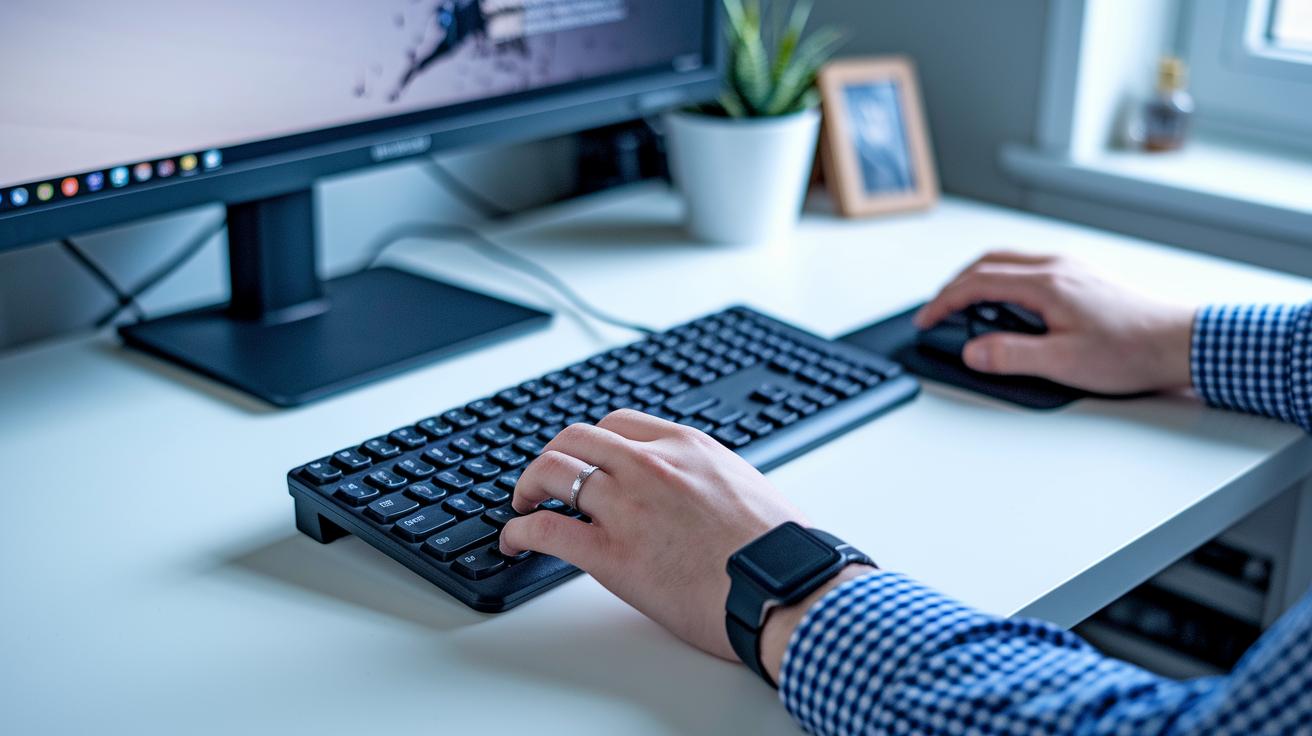
When you’re picking out new computer peripherals, it’s important to focus on durability, precision, and comfort. Think about devices that can handle long hours of work without breaking a sweat and that respond quickly to every click. For example, a solid keyboard is built for frequent use, while a less robust one might start showing wear sooner than expected. And with devices like a mouse, every tiny movement should register perfectly. It’s also smart to check that the peripherals are compatible with your current system, which can save you from setup headaches down the road.
Now, let’s talk about the differences between gaming peripherals and those meant for the office. Gaming keyboards and mice often come packed with features like programmable keys and bright backlighting that enhance gameplay. These devices are meant for high responsiveness and performance. In contrast, office peripherals are designed to be quiet and efficient, perfect for keeping you productive in a calm workspace. A quick review comparing different brands might reveal that while gaming peripherals push the limits in performance, office models focus on steady, reliable functionality and reducing fatigue during long work sessions.
When it comes to professional displays and scanning equipment, clarity and performance matter most. Creative professionals need monitors with sharp color accuracy and high resolution, often paired with multiple connection options. Meanwhile, scanners built to capture fine details offer top-notch optical resolution and work seamlessly with specialized software. These features ensure that everything from detailed graphics to crisp text appears just as it should, supporting both artistic projects and precise business tasks.
Maintaining & Upgrading Computer Peripherals: Care & Best Practices
Keeping your peripherals spick and span is a must for peak performance. Regular cleaning not only refreshes their appearance but also prevents dust and grime from messing with their working parts. Quick firmware updates and driver checks are like little tune-ups that ensure everything runs smoothly, and they help avoid headaches when setting up something new, like a monitor firmware update that fixes memory glitches and saves unsaved work.
It’s also important to know when it’s time to swap out a component. If your device starts acting sluggish or has constant compatibility issues, it might be a sign that an upgrade is in order. When shopping for new parts, look for features that boost speed and improve power management. Plus, new peripherals often come with better repair and replacement plans, which means more reliability in the long run. And don’t forget, shutting down your system properly protects data stored on devices like monitors, while smart power management can really extend the life of your whole setup. Regular checkups and timely upgrades are the secret to keeping your computer add-ons in great shape.
Final Words
In the action, we've explored how computer peripherals extend a computer’s capabilities, from input gadgets like keyboards and mice to output devices offering crisp displays and clear sound. We broke down storage modules and connectivity options, then offered clear tips on picking and caring for each component.
Our guide simplifies the technology behind these add-ons, making it easier to make informed decisions and discuss the latest trends. Enjoy the confidence that comes with understanding the various components powering your devices, and embrace the seamless integration of computer peripherals in everyday tech.
FAQ
What are computer peripherals and can you give examples?
Computer peripherals refer to external devices that connect to a computer. They include items such as keyboards, mice, monitors, printers, and USB drives, all of which extend a computer’s functionality.
What are the main functions of computer peripherals?
The main functions of computer peripherals include receiving user input, displaying data output, and providing supplemental storage or connectivity options, which enhance how the central system operates.
How are computer peripherals categorized?
Computer peripherals are typically divided into three types: input devices (like keyboards and mice), output devices (such as monitors and printers), and input/output devices (for example, USB drives and hard disks).
What are some examples of top peripheral devices in a computer?
Top peripheral devices include keyboards, mice, monitors, printers, and speakers, which are widely used in both personal computing and office environments to improve overall system interaction.
What is the most common use for peripheral devices in a computer?
Peripheral devices are most commonly used to allow users to interact with the computer—enabling data input, visual or auditory output, and additional data storage, which makes the system more versatile.
What does computer hardware include when considering peripherals?
Computer hardware encompasses both core components and external peripherals. The latter are add-on devices that offer extra functions like input, output, and storage, rounding out a computer’s capabilities.
How can I access information on computer peripherals in PDF format?
Information on computer peripherals in PDF format is often provided through online user manuals or product documentation, offering technical details, usage guidelines, and step-by-step setup instructions.