
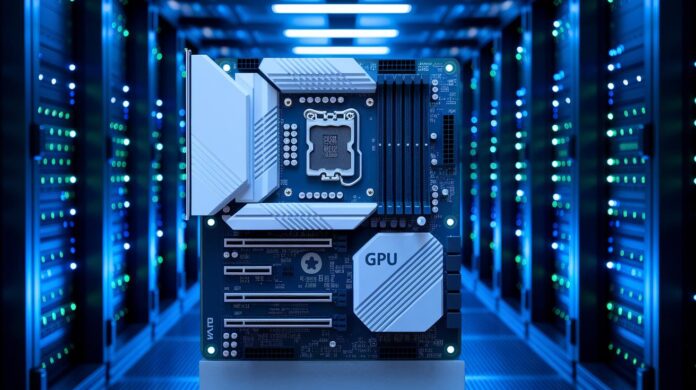
Ever wonder why your computer stays super responsive even when it's under heavy load? Picture it like a well-orchestrated team: one member handles the heavy lifting while the rest keep things running smoothly. That’s the magic of hardware acceleration. It moves bulky tasks away from the main processor and onto specialized components, like GPUs (graphics processors) or audio cards, so your system remains efficient even when pushed to its limits. In this article, we'll dive into how hardware acceleration powers rapid system performance and keeps your device agile during the most demanding operations.
How Hardware Acceleration Offloads Processing Tasks
Imagine your computer facing a heavy-duty task like rendering complex graphics or processing high-quality audio. Instead of overloading the CPU, it smartly hands off those intense jobs to specialized parts such as GPUs, audio cards, or even AI accelerators. This means tasks like turning intricate graphical data into smooth animations run seamlessly on the GPU, giving the CPU more breathing room for other work. Ever notice how your web browser stays responsive while displaying beautiful visuals? That's the magic of hardware acceleration at work.
This smart tech trick not only trims power usage but also slashes the delays you might experience otherwise. Think of Android devices, for example, since version 3.0, they’ve been using hardware acceleration to speed up 2D rendering across apps and interfaces. It’s like having a fast, dedicated team handling the visual heavy lifting while the main processor focuses on keeping everything else running smoothly.
Windows gets in on the action too. A mid-2020 update introduced hardware-accelerated GPU scheduling, which shifts certain CPU tasks onto the GPU. This shift helps the system stay nimble and reduces the load on the central processor, as long as your hardware and drivers are up-to-date and in sync with the operating system.
In short, by delegating specific tasks from the CPU to hardware built for those jobs, your system becomes more balanced and efficient. This smart division of labor keeps everyday tasks running effortlessly while also handling more demanding operations with ease.
Key Benefits of Hardware Acceleration
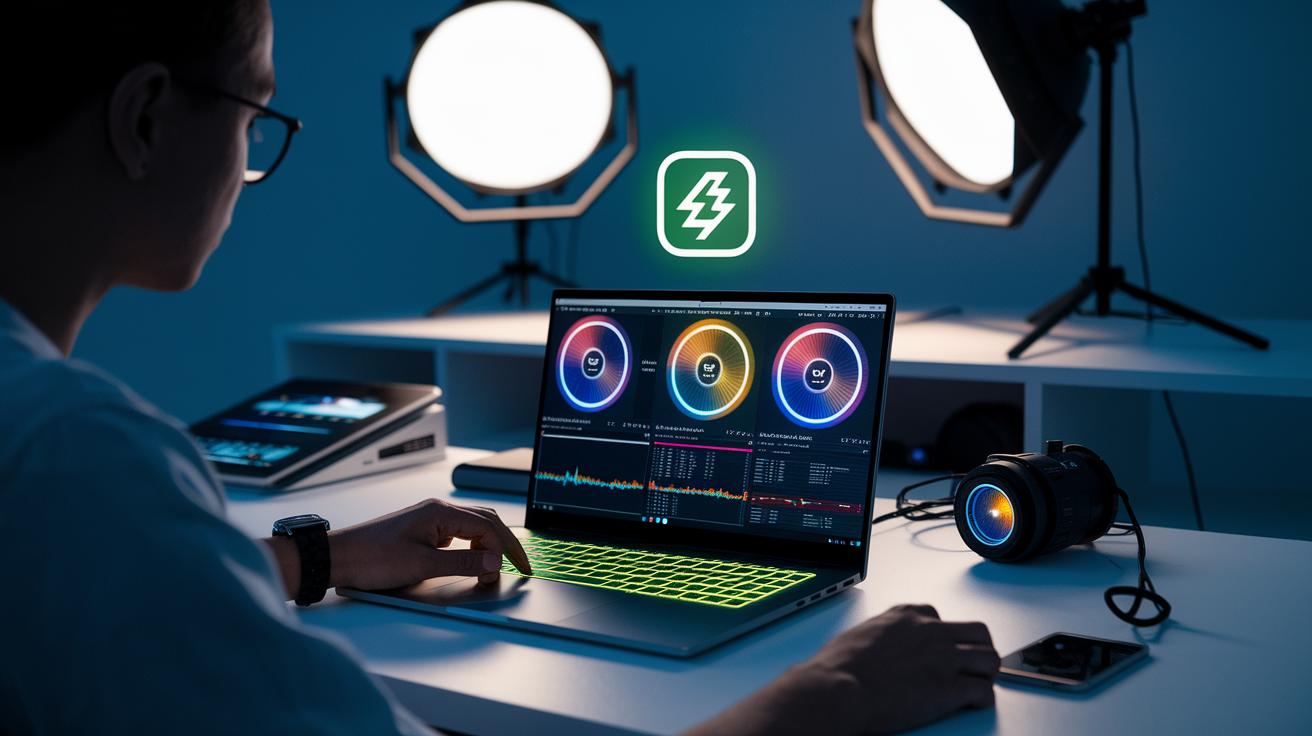
Advanced hardware acceleration isn’t just about offloading tasks. Multimedia editing software now moves processor-heavy shader work to dedicated GPU cores. In one case, a media app improved real-time performance by transferring complex video filters to a specialized processor. Imagine your favorite video playing smoothly, no matter how intricate the edits get!
Dedicated hardware not only ramps up performance but also cuts down on energy use. For example, a leading streaming platform recently saw a noticeable dip in power consumption when it swapped CPU-based decoding for GPU processing. This smart shift means battery-powered devices run longer and data centers benefit from reduced heat and lower costs.
Modern systems take advantage of cutting-edge GPU pipelines that work in tandem with the CPU. This setup lets challenging tasks, like managing a user interface while running background operations, happen side by side. It’s like having a specialized team handling the details while the main crew keeps the big picture in check.
Hardware Acceleration in Real-Time Rendering and Multimedia
Modern browsers like Chrome and Firefox now lean on hardware acceleration to supercharge their graphics. In plain terms, this means tasks like video decoding, animations, and those intricate 3D renderings are handled by your computer’s GPU instead of the main processor. The result? Real-time performance and smoother video playback, even when you’re streaming HTML5 videos or exploring WebGL content. Ever notice how high-definition videos now feature silky transitions and hardly any frame drops? That's your GPU doing its thing.
On Android devices, things took a turn for the better starting with version 3.0. Instead of putting all the pressure on the CPU, the GPU now jumps in to tackle heavy tasks like canvas rendering and multimedia decoding. This change cuts down on delays and boosts the clarity of live broadcasts. One developer once quipped, "Using GPU acceleration for multimedia decoding is like switching from a bicycle to a sports car when racing against time." And honestly, that analogy nails it.
But there’s more. Adding 3D rendering support has changed the game for interactive apps. Whether you're on a video call with dynamic animations or playing a browser-based game with detailed 3D models, the GPU keeps things running with barely any lag. By shifting these demanding jobs away from the CPU, systems stay responsive and run more efficiently. Simply put, hardware acceleration plays a key role in handling complex multimedia tasks, delivering the seamless and responsive experience our modern digital world demands.
Configuring Hardware Acceleration in Browsers and Operating Systems

Getting your browser to use hardware acceleration is surprisingly straightforward. If you’re on Chrome, just open the browser, click the three-dot menu in the top right, and head over to Settings. Scroll down until you find the System section and flip the toggle for hardware acceleration. This quick adjustment shifts heavy tasks over to your GPU, leaving your CPU free to tackle other jobs.
Firefox users have an equally simple path. Open the menu, click on Options, and then find the Performance section. Here, you can easily turn GPU acceleration on or off. One developer noted that switching off GPU acceleration in specific cases helped pinpoint performance bottlenecks, a handy tweak when you’re testing different workload setups.
Safari on macOS Catalina and later handles things a bit differently. The browser automatically activates hardware acceleration, so there’s no toggle to fiddle with, it’s all set by default for the best experience on your Apple device.
For Windows 10 and 11, you can take advantage of hardware-accelerated GPU scheduling. Just open the Settings app, navigate to Graphics Settings, and toggle on GPU scheduling. This change shifts some of the workload from your CPU over to your GPU, resulting in a smoother performance when handling graphically intensive tasks.
Android developers also have options. By adjusting manifest flags or setting certain view layer properties in your app, you can opt into hardware acceleration. This makes sure the GPU is handling demanding visuals, like 2D canvas rendering. Just be sure your device is updated and has the right drivers installed.
| Platform | Navigation |
|---|---|
| Chrome | Menu > Settings > System > Toggle acceleration |
| Firefox | Menu > Options > Performance > Toggle GPU setting |
| Safari | Default setting, no toggle required |
| Windows | Settings > Graphics Settings > Enable GPU scheduling |
| Android | Update manifest flags or view properties to opt-in |
Following these simple steps ensures each platform efficiently directs demanding processes to the right hardware, delivering a smoother and more responsive experience.
Hardware Requirements and Compatibility Considerations
Getting your system to run smoothly starts with having a GPU or similar dedicated hardware that enjoys solid driver-level support. Outdated or generic drivers can cause rendering glitches and slow down performance. For example, Windows’ GPU scheduling feature works best with WDDM 2.7+ drivers. On Android, only the GPU and a handful of DSP units are accelerated, so a dependable driver framework is crucial for your chipset to operate at its best.
Reliable driver support means your hardware operates as expected, and it helps keep everything running without hiccups. Regular updates are key, they ensure that advanced display settings and hardware optimizations work together seamlessly, delivering the quick performance you expect. Even audio acceleration depends on a dedicated sound card armed with the latest firmware to reduce latency and enhance sound quality.
Tools like GPU-Z and DxDiag are great for checking driver versions and confirming that your hardware meets all the necessary standards. Keeping your drivers current is essential for preventing performance drops and rendering issues.
- The GPU and other accelerators need strong driver support.
- Frequent driver updates boost chipset performance.
- Diagnostic tools help verify optimized driver support.
| Component | Requirement |
|---|---|
| GPU | WDDM 2.7+ driver support on Windows |
| Audio | Dedicated sound card with updated drivers |
| Android Devices | Accelerated drivers for the GPU and select DSP units |
Troubleshooting and Advanced Performance Tuning
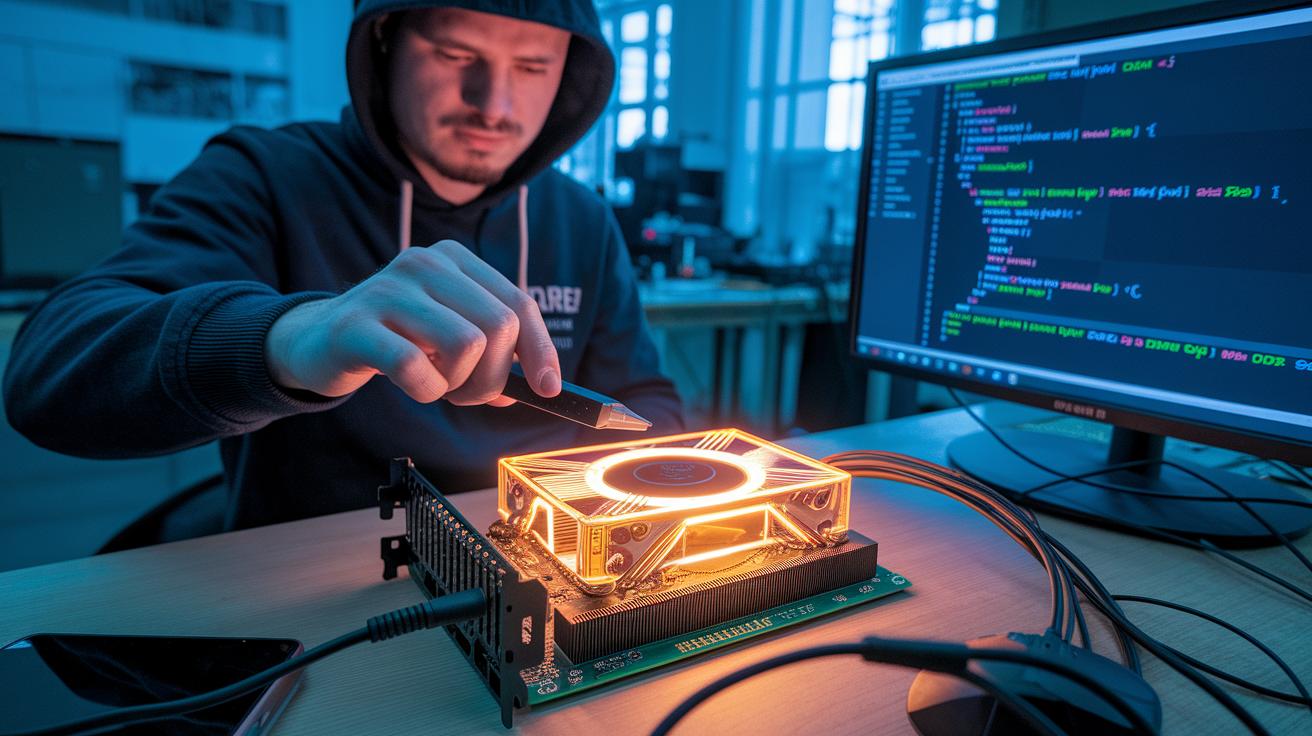
When things aren’t running as fast as they should, the first step is to look into familiar culprits like driver mismatches, outdated firmware, or those stubborn software bugs. Sometimes, turning off hardware acceleration in your app can clear up rendering issues, it’s like a quick diagnostic check. One developer, for example, found that disabling hardware acceleration stopped video stutter right up until an updated driver came along.
You might also explore registry tweaks that gently nudge your GPU to follow certain pathways. A practical move is enabling D3DRenderOverride in the Windows registry (this tells your system to re-route processing tasks), which can noticeably cut down on latency. And don’t forget about adjusting GPU scheduling settings in Windows Graphics Settings; by fine-tuning how the system prioritizes heavy tasks, you can see improvements in both frame rates and overall responsiveness.
Linux users face their own set of challenges with performance, but there are handy tools to tackle them. Updating Mesa drivers or tweaking X11/OpenGL settings can often smooth out performance hiccups. Tools like RenderDoc provide deep insights into GPU workloads. Many developers even run benchmark tests before and after making adjustments to ensure that their tweaks actually boost performance.
Here are some practical acceleration troubleshooting tips:
- Check for and update drivers to keep conflicts at bay.
- Apply registry tweaks, such as enabling D3DRenderOverride, to steer GPU tasks.
- Adjust GPU scheduling priorities in system graphics settings to lower latency.
- For Linux, update Mesa drivers or fine-tune X11/OpenGL parameters.
- Use profiling tools to monitor GPU workloads and track improvements in frame rates.
All in all, these performance tuning techniques address issues from outdated firmware to those subtle software bugs. Advanced GPU optimizations not only ramp up your frame rate but also cut down on latency, even when processing complex algorithms. Benchmark tests offer a clear before-and-after snapshot, ensuring every adjustment really makes a positive impact for both everyday users and seasoned developers.
Final Words
in the action, this article walked through how hardware acceleration offloads processing tasks to dedicated components, boosting efficiency in rendering, 3D visuals, and overall system responsiveness.
It showcased practical ways to adjust settings across different platforms and noted the importance of keeping drivers current for smooth operation.
By explaining these concepts in plain terms, readers gain a clear view of how these technical enhancements simplify everyday tech use. Enjoy exploring smarter, faster, and more efficient digital solutions.
FAQ
What does hardware acceleration mean?
Hardware acceleration means that certain processing tasks are offloaded from the CPU to dedicated components like GPUs and sound cards, improving speed and responsiveness while reducing overall system load.
How does hardware acceleration work in browsers and apps like Chrome, Firefox, Opera GX, and Discord?
In these browsers and apps, hardware acceleration shifts tasks such as video decoding, animations, and 3D rendering to the GPU, resulting in smoother media playback and faster UI performance.
How is hardware acceleration implemented on Windows 10/11 and GPUs?
On Windows 10/11, hardware acceleration directs GPU scheduling via system Graphics Settings, allowing dedicated GPUs to manage intensive tasks, which lowers latency and conserves power while boosting performance.
How do I enable or disable hardware acceleration?
Adjust hardware acceleration through your application or system settings; for example, in Chrome, toggle “Use hardware acceleration when available” in the settings menu, with similar options provided in other platforms.
Should hardware acceleration be on or off?
Generally, keeping hardware acceleration enabled is beneficial as it improves performance by freeing the CPU, though turning it off might help resolve specific display or compatibility issues for some users.
What do discussions on Reddit reveal about hardware acceleration?
Discussions on Reddit often focus on tweaking hardware acceleration settings to optimize system performance, with users sharing tips and troubleshooting advice to better handle rendering and compatibility challenges.