

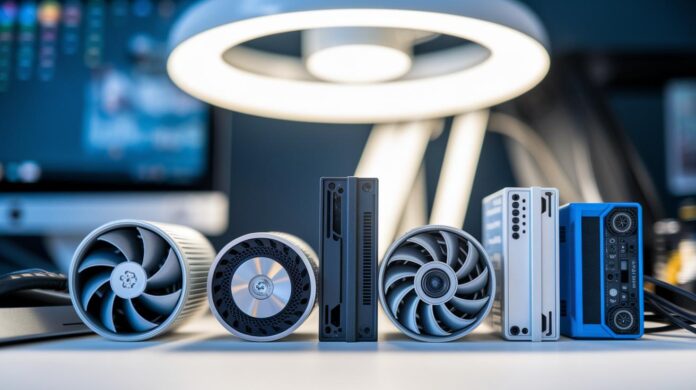
Ever wonder what makes a custom PC truly unique? Picture designing a computer that fits your lifestyle as perfectly as a sports car tuned just for you. In this guide, we explore seven essential computer parts that can really bring your system to life, whether you're into gaming, streaming, or handling heavy-duty tasks.
We’ll take you through each option, breaking down how they work together no matter your budget or needs. Each piece is chosen to make sure every part plays its role seamlessly.
So, are you ready to dive in and discover how these components can power up your setup?
7 computer parts: Stellar Picks for PCs
Before you dive into building a custom PC, take a moment to figure out what you'll primarily use it for. Whether you're planning to game, stream, or manage heavy work tasks, matching your parts with your specific needs is key. Imagine picking parts like tailoring a sports car, if high-resolution gaming is your goal, you'll want components that deliver sharp graphics and a speedy CPU, much like a precision-tuned engine.
Next, set clear budget tiers to guide your choices. Think about how much you want to invest: a $500–$800 build might cover the basics, while $800–$1,500 sets you up for a balanced mid-range system. If you're going for peak performance, you might invest $1,500 or more. This way, every component, from the CPU to storage, aligns with your needs. For example, a lower budget might suit essential tasks with modest graphics, whereas a higher budget lets you enjoy superb multitasking and gaming capabilities.
| Budget Range | Typical CPU | Typical GPU | RAM & Storage |
|---|---|---|---|
| $500–$800 | Quad-core CPU | Entry-level discrete or integrated | 8–16 GB / 256–512 GB SSD |
| $800–$1,500 | 6–8 core CPU | Mid-range GPU with 4–6GB VRAM | 16 GB / 512 GB SSD + optional HDD |
| $1,500+ | 8+ core high-performance CPU | High-end GPU with 8–10GB VRAM | 32 GB+ / 1 TB SSD (or more) |
As you move forward with your part selection, run through a quick checklist to ensure everything fits perfectly. Check that the CPU socket is compatible with the motherboard chipset, verify that your RAM speed matches the board, and ensure the power supply unit offers enough wattage for all your components.
Enjoy the process, and remember that a well-planned build brings both performance and satisfaction, like assembling the perfect setup, one thoughtful piece at a time.
Essential Internal Computer Parts and Their Functions
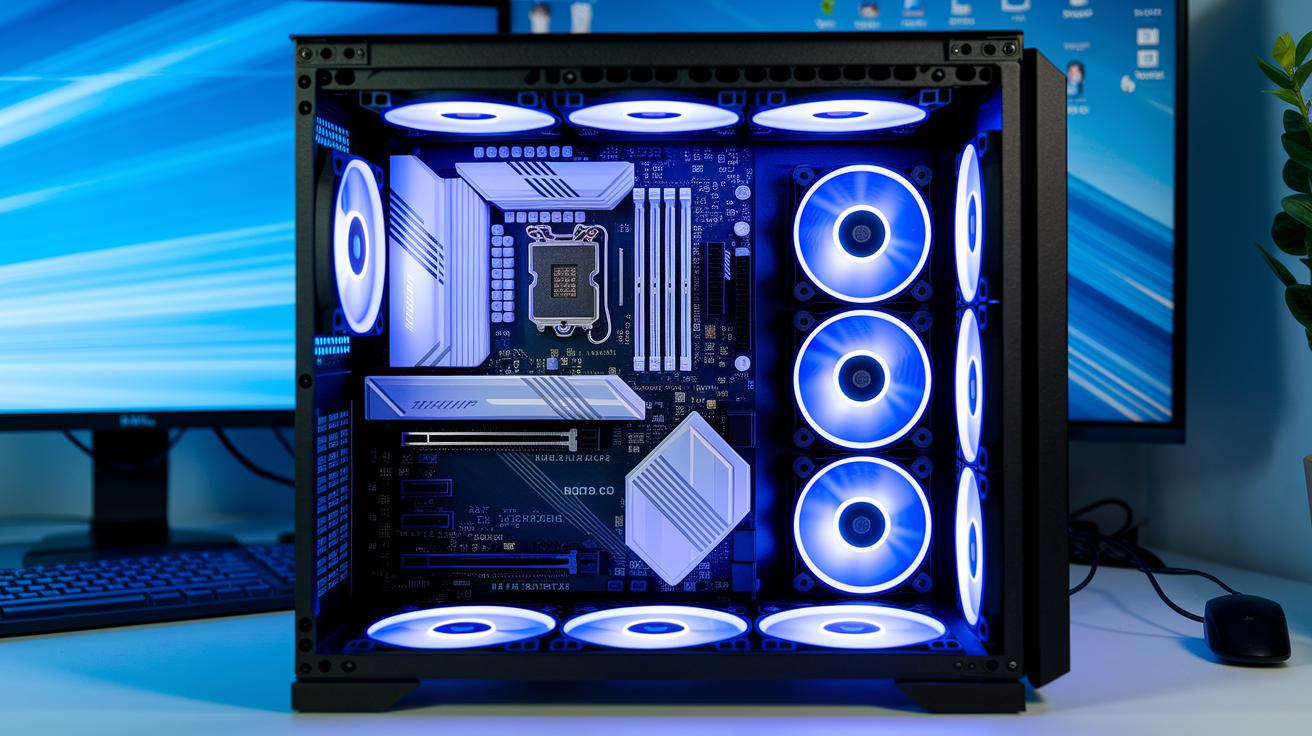
The CPU is really the brain of your computer, managing all the tasks and calculations. Today’s CPUs typically come with anywhere from 4 to 16 cores, operating between 3.5 and 5.0 GHz. A mid-range quad-core, for instance, works great for everyday tasks, while more intensive applications might need the extra power of additional cores.
A graphics card, or GPU, handles everything from image processing to detailed graphic rendering. With VRAM capacities now between 4 GB and 24 GB, modern GPUs can keep video games and graphic-intensive programs running smoothly and looking sharp.
Your motherboard acts as the backbone for your entire PC. It connects all your components and allows them to communicate. Available in form factors like ATX, mATX, or ITX, its design directly influences the number of expansion slots, integrated ports, and overall connectivity, making it an essential element in your computer’s setup.
RAM boosts your system’s responsiveness and ability to juggle multiple tasks. Modern DDR4 memory typically runs from 2400 to 3600 MHz, providing the speed required to efficiently manage active applications and data-heavy tasks.
Storage devices, including SSDs and HDDs, are where your operating system, applications, and files reside. Options range from 256 GB to 4 TB, with SSDs offering notably faster boot and load times compared to traditional hard drives.
The power supply unit ensures every component receives stable power. Rated between 450 W and 1,000 W, these units support your system’s needs and help maintain reliability, especially during demanding operations.
Cooling systems are critical for keeping the temperature in check. Whether you choose air or liquid cooling, these systems are designed to handle thermal loads from 100 to 300 W, preventing overheating and ensuring smooth performance even when the system is under heavy use.
Inside the motherboard, everything works together harmoniously. It interconnects the CPU, memory, storage, and additional modules, ensuring your PC runs efficiently like a well-coordinated team.
Comparing Performance: CPU and GPU Benchmark Analysis for Computer Parts
Benchmarking is all about getting a real sense of how computer parts handle everyday loads. Think of it as running a quick, friendly test that shows off the effects of clock speed, core count, and VRAM. This way, you can decide which parts fit your needs best.
Take, for example, a CPU that scores between 5,000 and 30,000 in Cinebench R23, it tells you just how many tasks it can juggle at once. Similarly, when a GPU scores from 5,000 to 20,000 in 3DMark Time Spy, you know it’s more than capable of delivering smooth graphics and crisp visuals.
Here are three popular benchmarking tools that you might come across:
- Cinebench R23 evaluates a CPU’s power by testing both single-core and multi-core performance, so you get a clear picture of its efficiency.
- 3DMark Time Spy puts a GPU through a stress test on modern graphical features, emphasizing the role of VRAM in handling today's rich graphics.
- PCMark 10 looks at overall system performance in everyday tasks, shining a light on how each component, and its overclocking potential, plays a part.
When it comes to comparing scores with price, the secret is to strike a balance. A component that offers great performance for a reasonable price can be a dream come true for your build. Sure, a high score looks tempting, but it’s important to check if the extra cost really brings the noticeable improvements you need.
Storage Devices in Computer Parts: SSD Versus HDD and NVMe Drives
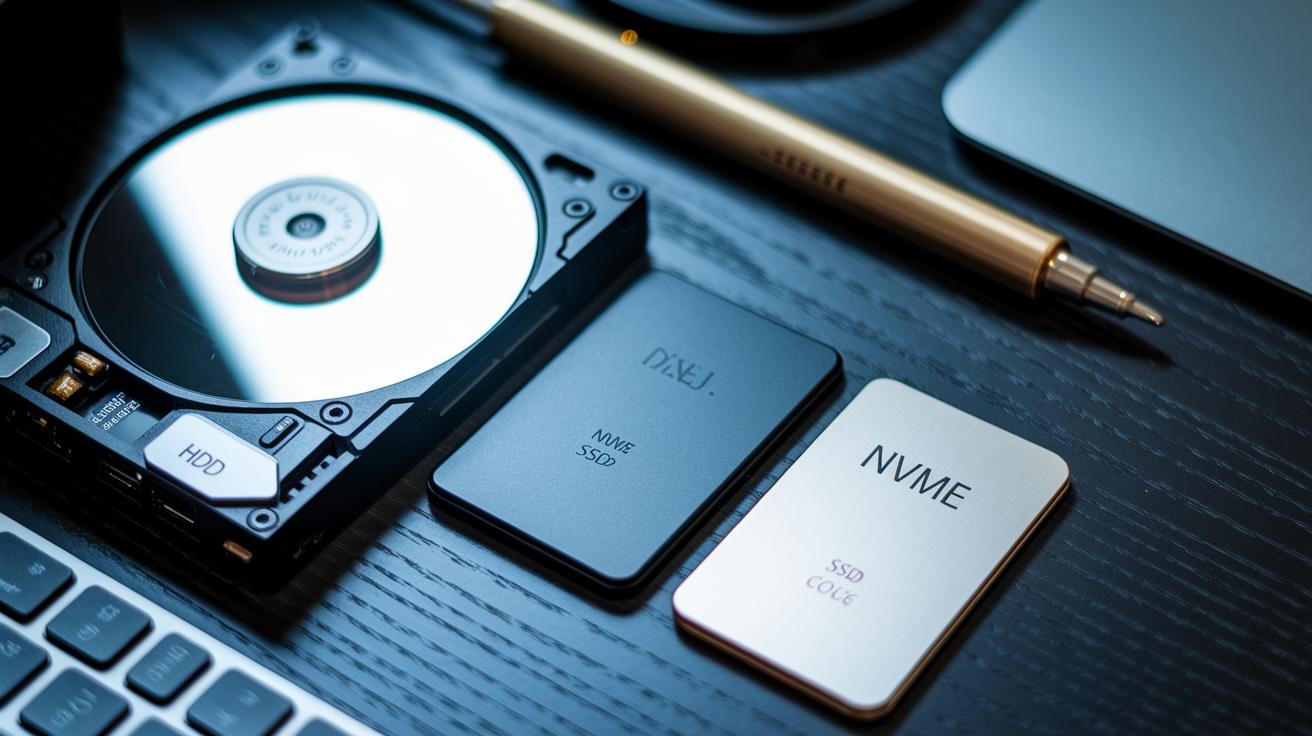
When you're picking out storage, it's all about balancing performance with cost. Hard drives (HDDs) give you plenty of space without breaking the bank, but they just can’t keep up speed-wise. On the other hand, SATA SSDs ramp up your system's responsiveness with much faster read speeds. And then NVMe SSDs? They’re on another level with lightning-fast data transfers that redefine quick computing. Did you know that even a small speed boost in storage can nearly cut your boot time in half? It’s true, the choice boils down to your needs: HDDs are great for high-capacity, cost-effective storage, while SSDs and NVMe drives cater to those who crave speed and top-notch performance.
| Type | Capacity Range | Sequential Read | Cost per GB |
|---|---|---|---|
| HDD | 1–4 TB | 100–150 MB/s | $0.03/GB |
| SATA SSD | 256 GB–2 TB | 500 MB/s | $0.10/GB |
| NVMe SSD | 256 GB–2 TB | 3,000–7,000 MB/s | $0.15/GB |
Your ideal choice really depends on what you're working on. Gaming? NVMe drives shorten load times, letting you jump into the action faster. Editing high-resolution videos? The impressive speeds of SATA or NVMe can smooth out your workflow and save precious time. And if it's all about storing massive media libraries or backups, HDDs still offer a reliable, budget-friendly solution.
Computer Parts: Power Supply Units and Cooling Systems for Reliable Performance
When it comes to power supplies, matching the wattage to your system's demands is key. Most power supplies range between 450 W and 1,000 W. So, before you buy, check how much energy your build actually needs. For example, a mid-range system might run efficiently with a 550 W unit certified as 80 Plus Bronze (which means it works at about 82–85% efficiency). On the flip side, high-powered setups really benefit from something like a 750 W unit with a Gold certification that offers roughly 87–90% efficiency. This not only keeps your system stable under heavy loads but also minimizes energy waste and excess heat.
Cooling is just as crucial as powering your system. Air cooling solutions are pretty common because they’re simple to install and maintain, and they typically handle thermal design power (TDP) outputs in the 100–200 W range. But if you’re pushing your system with overclocked or high-performance components, a liquid cooler might be a better pick. All-in-one liquid coolers are designed for TDP outputs between 150–280 W, ensuring that your system maintains consistent, cool temperatures even under stress. It really boils down to what your system needs and your budget, both air and liquid coolers bring their own set of strengths.
Ultimately, syncing your cooling capacity with your CPU or GPU’s heat output is essential. When your processor or graphics card is generating a lot of heat during intensive tasks, opt for a cooler that comfortably exceeds the component's TDP. Whether you choose an air or liquid system, ensuring proper thermal management means you can avoid thermal throttling and enjoy reliable performance throughout your computing sessions.
Case Designs, Cable Management, and Peripheral Compatibility in Computer Parts
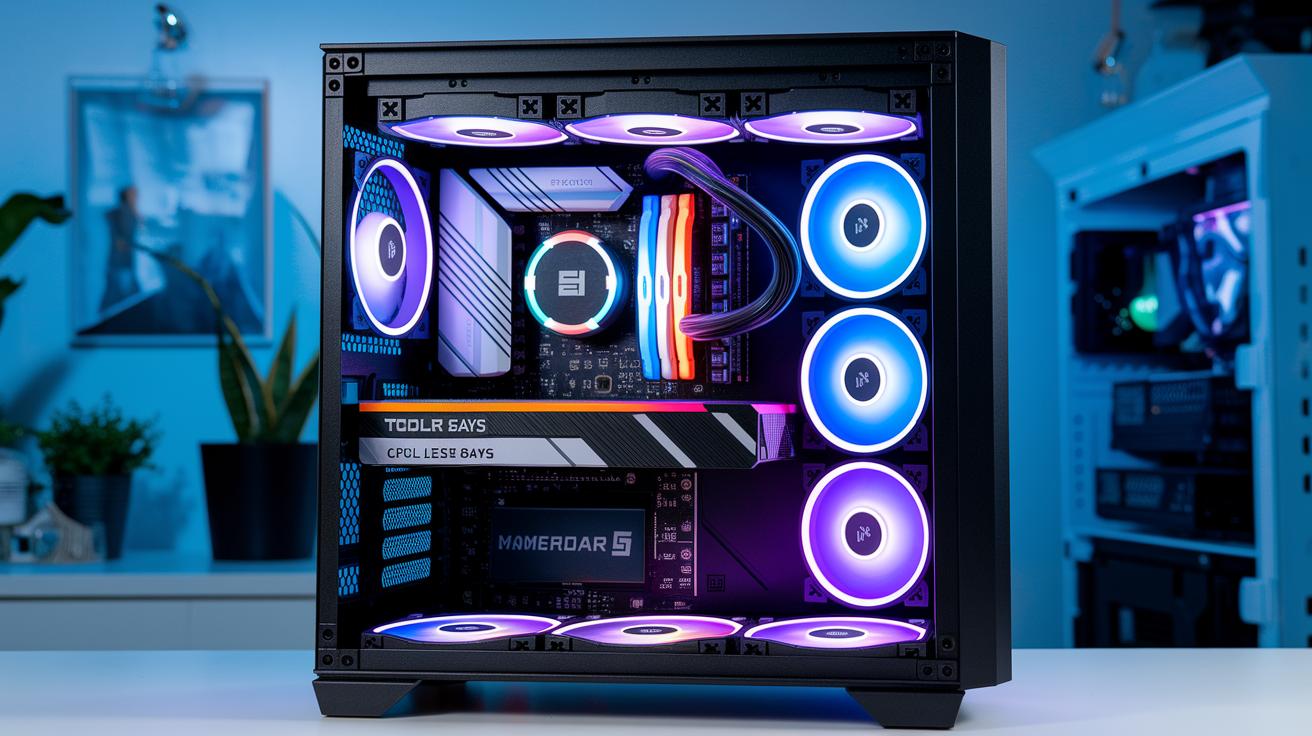
Choosing the right case is key for a smooth build. Start by thinking about its size and standout features. Cases come in ATX, mATX, or ITX designs, each offering different expandability options. Be sure to check that your GPU has enough room, usually between 330 and 380 mm, and that your CPU cooler fits comfortably in a height of up to 165 mm. You’ll also appreciate tool-less drive bays and a handy front-panel I/O, all of which simplify setup and future tweaks.
Cable management is the next vital step. A well-designed case gives you ample space behind and around the motherboard so you can route your cables neatly. This is especially important if you’re planning for multi-monitor setups or additional hardware. Look for cases with dedicated cable routing channels or built-in ties to minimize clutter, improve airflow, and make upgrades a breeze.
Modern cases now often feature eye-catching LED lighting and customizable RGB setups. This means you can add your unique style without sacrificing performance.
Budget Versus Premium Computer Parts and Upgrade Paths
When you're putting together a new computer, you quickly notice that there are basic parts and top-tier components. Basic setups often include a CPU and GPU priced around $300 to $400, which work well for everyday tasks and light gaming without breaking the bank. On the other hand, premium builds start at about $800, offering more processing power, crisper graphics, and extra features that are perfect for demanding programs. That extra cost usually means a smoother run with resource-heavy software and a system that welcomes future upgrades.
It makes sense to begin your upgrade journey with the processor and memory. Revamping your CPU and RAM sets the stage for faster, more efficient performance. After that, zero in on the graphics card to lift your visual experience. Then, think about boosting your storage to shave seconds off loading times for your apps and files. Finally, consider switching out your power supply and case to achieve stable energy delivery and better airflow. This step-by-step approach helps you build a balanced system over time.
Keep an eye on online computer retailers for flash sales and special deals. These events can help you score premium parts at lower prices, making it easier to evolve from a basic setup into a high-end system.
Future Trends in Computer Parts and Next-Gen Hardware Releases

Next-gen PC parts are ready to shake up our expectations of performance. Take PCIe 5.0, for instance, it now hits a bandwidth of 32 GT/s, which means data moves much faster. And with DDR5 memory clocking in between 4800 and 8400 MHz, multitasking and efficiency get a serious boost. This tech evolution is changing the way high-end workstations and gaming rigs tackle data-heavy tasks and demanding applications. By integrating these advanced interfaces, systems run smoother and become more responsive overall.
PC component design is also getting a green upgrade. Manufacturers are embracing eco-friendly materials by introducing energy-saving CPUs and redesigned silicon that lowers overall power use. Look out for the anticipated GDDR7 GPUs hitting the scene in 2024; they're set to deliver impressive performance while keeping energy use down. Plus, part-picker tools are making it easier for enthusiasts to track these new releases and plan their future upgrades with ease.
Final Words
In the action, this post broke down selecting the right computer parts, from matching your budget and use-case to weighing the merits of each core component, including the CPU, GPU, storage, power supply, and cooling systems.
Every section offered hands-on tips with compatibility checklists, clear comparisons, and a peek at emerging trends. These insights empower you to make smart, informed decisions and enjoy seamless tech integration with your custom computer builds.
FAQ
What does “computer parts near me” mean?
The term “computer parts near me” refers to nearby physical locations where you can find hardware. It implies searching for local stores that stock components for repairs or custom builds.
What is included in a computer parts list?
The computer parts list covers core hardware like the CPU, motherboard, RAM, storage, GPU, PSU, and cooling systems. It serves as a checklist for planning and assembling a custom build.
How can I buy computer parts online?
The phrase “computer parts online” means purchasing hardware via digital retail platforms. These sites offer a broad selection and competitive prices, ideal for finding parts to suit various build needs.
What do computer parts names and diagrams show?
The computer parts name and diagrams highlight essential components such as the CPU, motherboard, and graphics card. They provide a visual breakdown to help understand where each part fits within a system.
What is a computer parts store like Newegg?
The computer parts store reference includes retailers like Newegg, a well-known online destination offering an extensive array of components with user reviews, ensuring a reliable source for hardware selections.
What are the essential components of a computer?
Questions about main computer parts cover key elements like the CPU, motherboard, RAM, storage, GPU, power supply, and cooling systems. These components form the backbone of any desktop or PC build.