

Ever wondered what makes your computer start up so smoothly? BIOS is a small chip on your motherboard that quickly checks your hardware and loads your operating system. Think of it like a conductor, timing each part perfectly so everything kicks off in harmony.
When you set up BIOS correctly, your system runs without hiccups or boot errors. In this post, I'll share clear, step-by-step tips to get your BIOS configured just right, helping you unlock the best performance from your computer.
BIOS Computer Fundamentals: Definition and Core Functions
BIOS is a type of firmware residing on a small chip on your motherboard, it’s the very first software to fire up when you turn on your computer. Think of it as the friendly conductor at the start of an orchestra, giving a precise cue to set everything in motion.
When you power up, the BIOS jumps in and runs a Power-On Self-Test (POST), a quick checkup to ensure all your hardware is in good shape before it hands things over to the bootloader that brings in your operating system. Its settings are kept in CMOS memory, and you can adjust them using the BIOS Setup Utility, much like tweaking preferences on your smart device before diving into your day.
| Core BIOS Function | What It Does |
|---|---|
| Initializing Hardware Components | Makes sure every part of your computer is ready to work. |
| Running POST Diagnostics | Checks the system’s health at startup. |
| Locating and Loading the Operating System | Finds the bootloader and seamlessly loads the OS. |
| Managing Hardware/OS Data Flows | Oversees communication between your computer’s components and software. |
| Storing Settings in CMOS Memory | Saves configuration details that you can tweak when needed. |
| Providing a User-Accessible Setup Utility | Lets you customize and control your system settings easily. |
A well-configured BIOS is essential for your computer’s stability, helping it run smoothly and efficiently. When the settings are just right, you’re less likely to face boot errors or compatibility issues with new hardware. Ever wonder why a misconfigured BIOS can freeze your system or cause unexpected hiccups? It’s similar to a mis-tuned instrument, a few small adjustments can make a world of difference in performance.
BIOS Computer: Clear Insights for Easy Setup
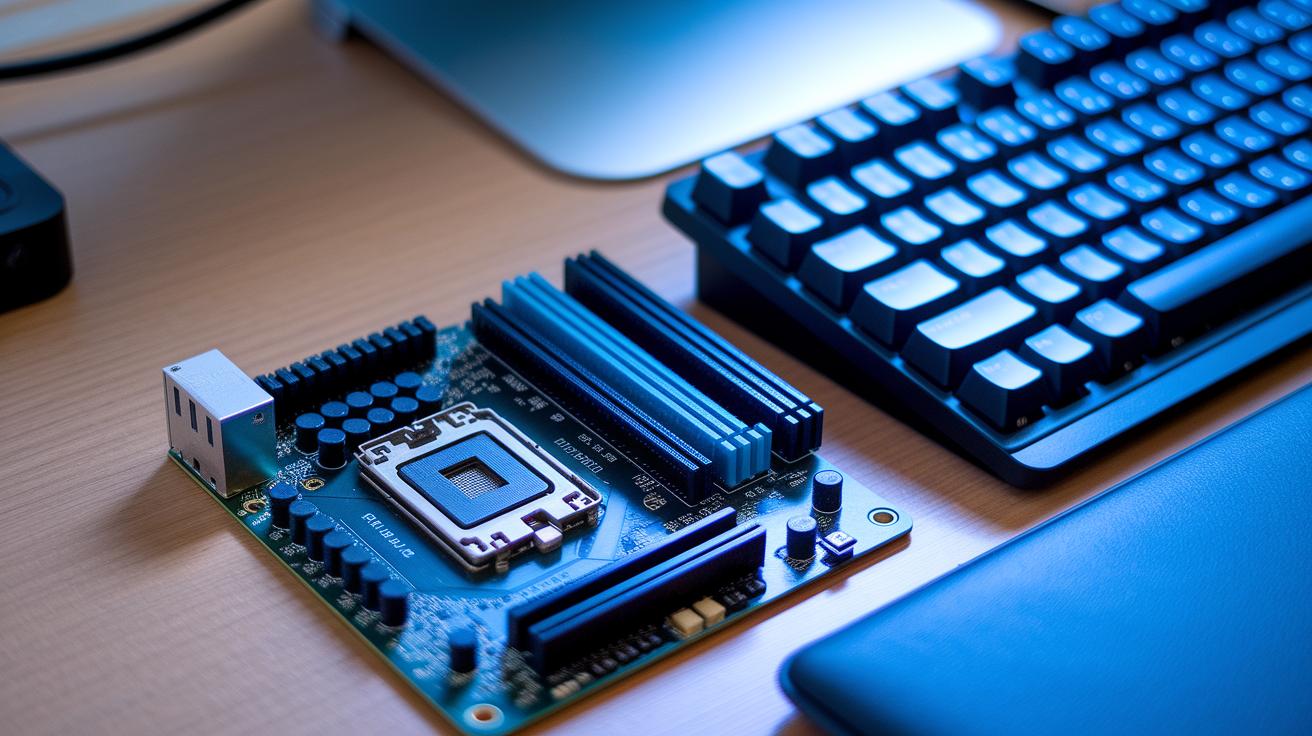
In the early days of computing, getting to your BIOS settings was a very hands-on experience. Back then, you had to physically adjust jumpers or flip DIP switches on your motherboard, imagine literally turning a dial or flipping a switch to change your computer’s settings. It took a keen eye because one misplaced jumper could mess up the whole boot process or confuse your hardware.
Now, modern PCs have simplified everything. You just press keys like Del, F2, Esc, or F10 immediately after turning your computer on. Since different manufacturers might have their own preferred key, it’s smart to check your user manual for the correct shortcut. Once you’re inside the Setup Utility, your computer smoothly goes through hardware checks and configurations before handing off to the operating system. And if you ever need a fresh start, you can clear the CMOS, either by using a jumper or removing the battery, to reset everything back to its default settings.
BIOS Computer Configuration: Mastering the Setup Utility
The BIOS Setup Utility offers a straightforward text menu for adjusting your system’s settings. When you press the right key during startup, you step into an environment where options are neatly organized, making it simple to customize without any fuss. Whether you're new to tech or a seasoned pro, this setup makes tuning your computer feel like a breeze.
Inside the utility, there's a lot you can tweak. You can set the boot sequence to decide which drive boots up first, tweak CPU performance settings for that extra speed, and adjust memory timings to keep the system responsive. Plus, you can manage power settings to cut down on energy use and quickly toggle peripheral controllers for things like SATA, USB, or even audio. It’s like having the control panel of your favorite gadget, letting every component work together smoothly with your operating system.
Once you've made your changes, just save and exit, the modifications are written to CMOS memory and take effect when you restart. A quick reboot lets you immediately feel the benefits, from improved stability to a snappier performance.
BIOS Computer Update and Firmware Maintenance Guide

Keeping your BIOS updated is a smart way to ensure your system runs smoothly. It helps fix hidden performance issues and supports new PCIe devices, which can boost compatibility, stability, and even bring new features to your computer. In essence, staying current with your BIOS means avoiding bugs that could interfere with your boot process or limit your hardware’s potential. It’s a proactive step to enhance both efficiency and security.
To start an update, first check your current BIOS version to see if an update is needed. Then, visit your motherboard manufacturer’s website to download the right firmware file. Next, copy the update to a USB drive and use your system’s built-in flash utility, tools like EZ Flash or Q-Flash work well, to install the update. Oh, and don’t forget to back up your current BIOS settings before you begin; this backup is a lifesaver if something goes wrong. Just follow the on-screen instructions and let the process complete without interruption.
For ongoing firmware maintenance, make it a habit to check for new releases from your vendor. Always back up your BIOS settings before you apply any updates, and verify that the update is compatible with your hardware. Keeping up with these updates will help prevent system instability and ensure your computer stays responsive and secure no matter how demanding your tasks become.
BIOS Computer Troubleshooting: Techniques for Error Diagnosis
BIOS errors usually crop up when settings are off or firmware gets corrupted, causing boot issues. When things aren’t configured properly, your system might not start at all or show odd error messages. Often, these troubles result from small mistakes during setup that mess with hardware recognition and overall stability.
During startup, your computer runs a Power-On Self-Test and signals problems with POST codes and beep sequences. These beeps, arranged in different patterns, point to specific issues with components like memory or the processor. Paying attention to these sounds gives you a built-in checklist to help figure out what’s going wrong.
One effective solution is to reset the BIOS to its default settings. This usually means clearing the CMOS, either by taking out the battery or using a jumper on the motherboard. Doing this erases any custom settings that might be causing issues and brings you back to a reliable baseline. If you’re dealing with BIOS passwords, you might need to follow specific jumper instructions or provider tips. This process can clear up errors and restore your computer’s smooth, dependable performance.
BIOS Computer Advanced Features: UEFI Comparison and Security Protocols
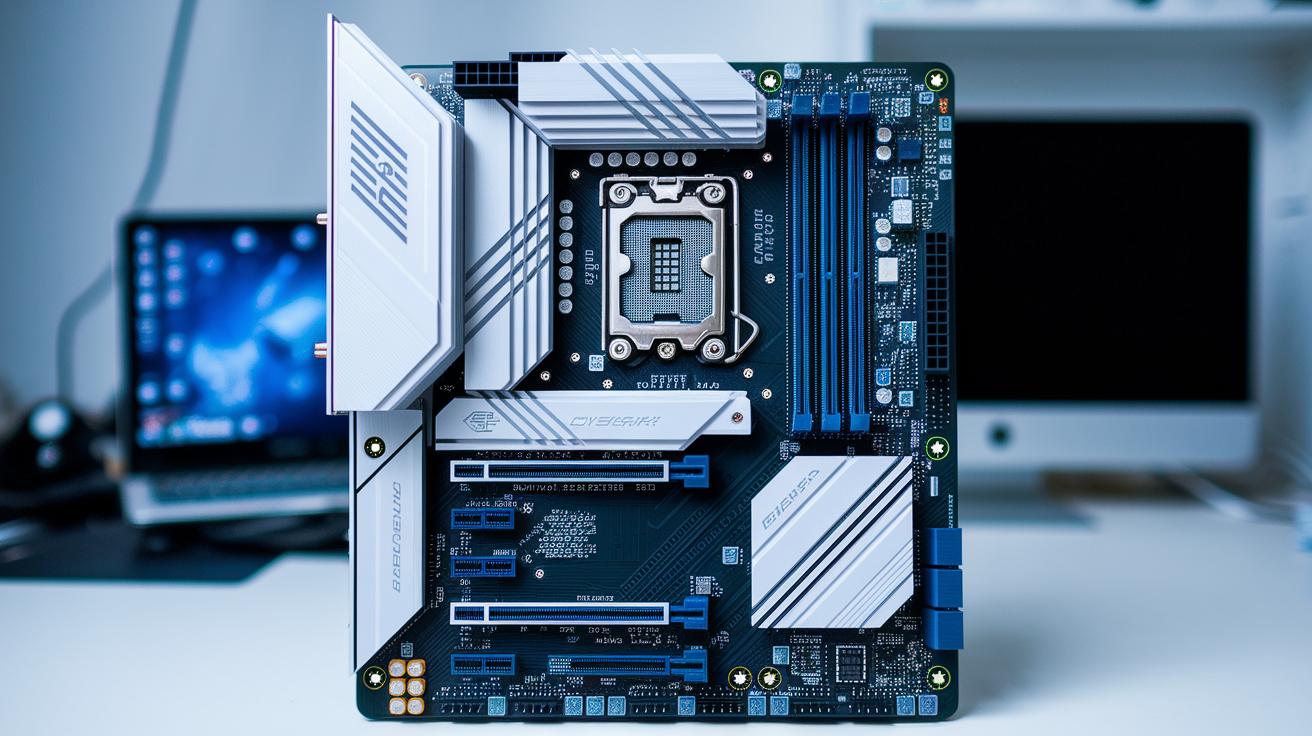
Legacy BIOS has been the go-to for booting up computers for many years. This tried-and-true system uses the Master Boot Record, a method that handles disks up to 2.1 TB, and gives you a straightforward, text-based menu to tweak your system settings. It’s simple, reliable, and perfect for those who prefer a no-nonsense approach when powering up their hardware.
Then came EFI, shaking things up with a more visually engaging interface and early support for the GUID Partition Table. Fast forward to today, and UEFI has taken all those improvements to the next level. Not only does it support disks larger than 2.2 TB, but it also ramps up security with protocols like secure boot. Many modern systems, even Apple Macs, run on EFI or UEFI platforms, offering a blend of ease-of-use, enhanced performance, and strong security measures like firmware integrity checks and password protection.
| BIOS Type | Description | Key Features |
|---|---|---|
| Legacy BIOS | Uses MBR and simple text-based menus for basic startup. | Supports up to 2.1 TB disks, straightforward interface. |
| EFI | Introduced a graphical interface with early GPT support. | Improved usability and support for larger disks. |
| UEFI | Modern firmware that supports massive storage and secure boot protocols. | Handles disks over 2.2 TB, supports secure boot, faster startup, and robust security protocols. |
The move to UEFI doesn’t just improve how data is managed, it also brings a whole new level of security. With secure boot protocols that check digital signatures of the boot components, UEFI stops any unauthorized firmware from taking over during startup. This is a big deal given past security breaches, and it significantly cuts down the risk of firmware exploits. Plus, with added features like password protection, enforced secure boot keys, and thorough integrity checks, UEFI builds a layered defense that keeps your system safe even under heavy use. For anyone committed to system stability and data security, these improvements provide a reassuring safety net and help create a rock-solid security framework in the modern tech landscape.
Final Words
In the action, this article broke down the essentials of BIOS computer firmware. We reviewed how startup functions run smooth diagnostic tests, load the operating system, and store key configuration settings.
The piece also guided you through access methods, configuration tweaks, update steps, troubleshooting tips, and compared advanced BIOS features.
A properly configured bios computer sets the stage for stable performance and confident tech decisions. Stay curious and keep pushing the boundaries of innovation.
FAQ
What are the core functions of BIOS?
The core functions of BIOS involve initializing hardware components, running POST diagnostics, locating and loading the operating system, managing data flows between hardware and software, and saving configuration settings in CMOS memory.
What is BIOS in a laptop or a Windows 10 computer?
The BIOS in laptops, including Lenovo and Windows 10 machines, is a firmware on the motherboard that starts the system, checks hardware, and transfers control to the operating system for further processing.
Is BIOS hardware or software?
The BIOS is a type of firmware stored on a motherboard chip that combines hardware and embedded software functions, helping to initialize and manage system processes during startup.
What is a BIOS update in a computer?
A BIOS update is a firmware revision that fixes bugs, improves hardware compatibility, and enhances performance, usually completed by downloading the update from the manufacturer and following specific instructions.
How do I open the BIOS and find out which version I have?
To open the BIOS, press keys such as Del, F2, Esc, or F10 immediately after powering on. The BIOS version is often displayed in the setup menu or can be found through your system’s properties.
How can I fix BIOS problems in my PC?
Fixing BIOS issues may involve resetting CMOS via jumper or battery removal, reconfiguring settings, and updating the firmware from the manufacturer’s website to resolve boot or stability problems.
What are the types of BIOS?
Types of BIOS include Legacy BIOS, EFI, and UEFI; each offers various interfaces, boot support, and security features, with UEFI being the most advanced, providing secure boot and modern system support.